Account & billing
Your invoices
Where to find them, what the statuses mean, and how to get the PDF for your accountant.
2 min read · Last reviewed 22 Oct 2026
Settings → Billing lists every invoice raised against your company, newest first, each with a PDF you can download.
What is on the list
| Column | Means |
|---|---|
| Invoice | The number. Quote it when you pay and when you ask about it. |
| Issued | The invoice date. |
| Period | The service period it covers — the month or year you are paying for. |
| Total | What is payable, including tax. |
| Status | Issued, Paid, Overdue or Void. |
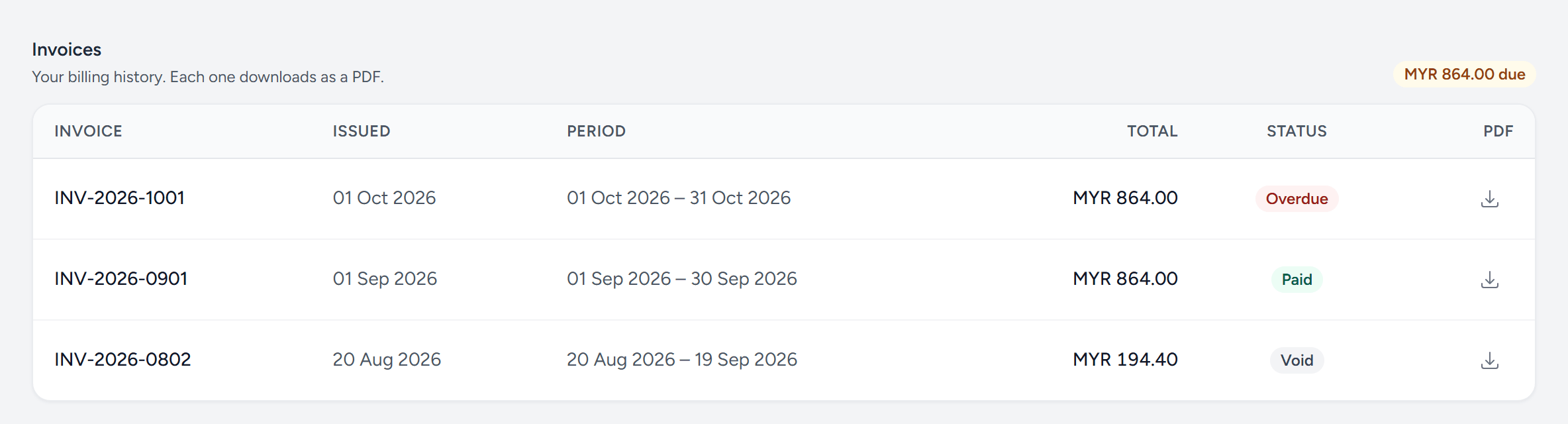
- Amount due — everything issued and not yet paid.
- Invoice — the number to quote when you pay.
- Period — the months the invoice is for.
- Overdue — issued and past its due date.
- Paid — settled.
- Void — cancelled; kept on the list so your records have no gaps.
- PDF — download it for your accountant.
The statuses
- Issued — payable, not yet paid.
- Overdue — issued, and past its due date.
- Paid — settled. The PDF shows a zero balance.
- Void — cancelled and not payable. The number stays on your list so your records have no gaps; if it was replaced, the note says by what.
Invoices still being prepared are not shown. You only see one once it has been issued.
The PDF
Download it from the row. It carries both parties' registered details, the service period, the line items, any tax, and the payment reference — everything your accountant needs, and nothing they have to ask you for.
Paying
Card payments go through the checkout on the billing page and the invoice marks itself paid within a minute or two. For bank transfer, use the details on the invoice PDF and quote the invoice number; it is marked paid once the transfer is confirmed.
If something looks wrong
Get in touch with the invoice number rather than editing anything at your end — a wrong invoice is corrected by voiding it and issuing a replacement, so both documents exist and the trail is intact.
Still stuck?
Tell us what you were trying to do — a person on our team will reply. If this guide is missing a step or out of date, say so and it gets fixed in the manual, not just in an email.