Inventory
Transfers between outlets
Move stock from one location to another, with both ends confirming.
2 min read · Last reviewed 22 Oct 2026
A transfer moves stock and its cost from one outlet to another. Both ends have to act — that is the design, not an inconvenience.
Sending
- Transfers → New Stock Transfer.
- Choose the destination outlet.
- Add lines: ingredient, quantity. The cost travels with it automatically.
- Save Transfer, then Send. The stock leaves the sending outlet and the transfer becomes in transit.
Receiving
At the other end, the transfer appears under Transfers → Stock Transfers, in transit. When it arrives, open it and press Receive Transfer: the stock lands and the transfer closes. If something on it did not come, do not receive it — ask the sender to cancel it and send what actually went.
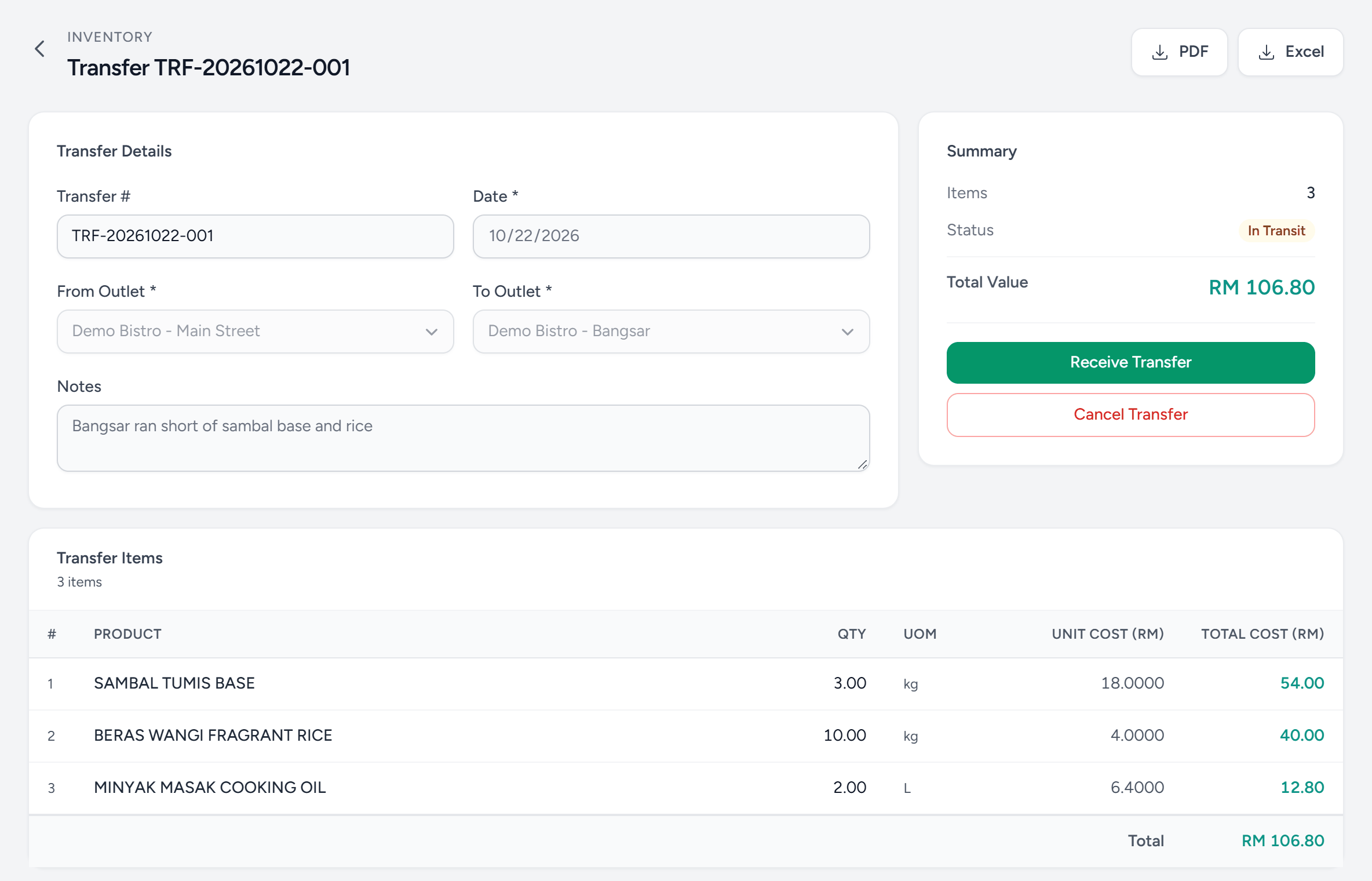
- In Transit — sent, not yet received. The stock belongs to neither outlet.
- From Outlet — where it left.
- To Outlet — where it is going.
- Receive Transfer — the receiving outlet confirms it arrived. Stock lands there.
- Cancel Transfer — the sender takes it back, before it is received.
- Unit cost — the cost travels with the stock, at the sender's cost.
- Activity — who created, sent and received it, and when.
In transit is a real state
Between send and receive, the stock belongs to neither outlet. This is deliberate: it makes a transfer that was sent and never received visible as a gap, rather than silently inflating the receiving outlet's count. If your variance report keeps showing a shortfall at one branch, look here first.
Cancelling
The sender can cancel it before it is received; the stock returns to them. After receipt, raise a transfer the other way rather than cancelling — the movement happened and the record should say so.
Still stuck?
Tell us what you were trying to do — a person on our team will reply. If this guide is missing a step or out of date, say so and it gets fixed in the manual, not just in an email.