Purchasing
How a purchase moves through Servora
Five documents, each filled from the one before it. Which ones you use depends on how your company is set up.
3 min read · Last reviewed 22 Oct 2026
A purchase leaves a paper trail, and each step in Servora creates the next one rather than asking you to retype it.
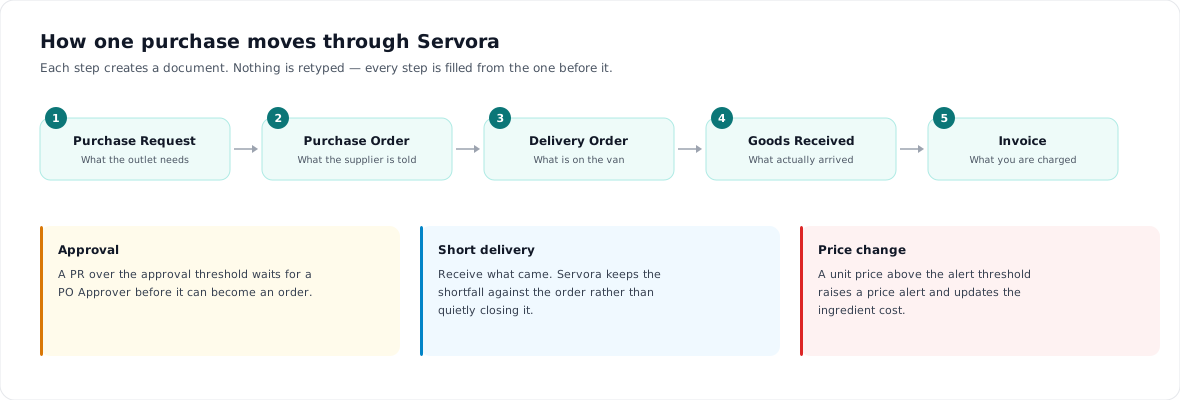
The five documents
- Purchase Request (PR) — what an outlet says it needs. Raised by a chef or a manager.
- Purchase Order (PO) — what the supplier is actually told to send, at agreed prices.
- Delivery Order (DO) — what is on the van. Often the supplier's own paperwork.
- Goods Received Note (GRN) — what actually arrived, in what condition. This is the one that matters.
- Invoice — what you are charged, checked against the GRN.
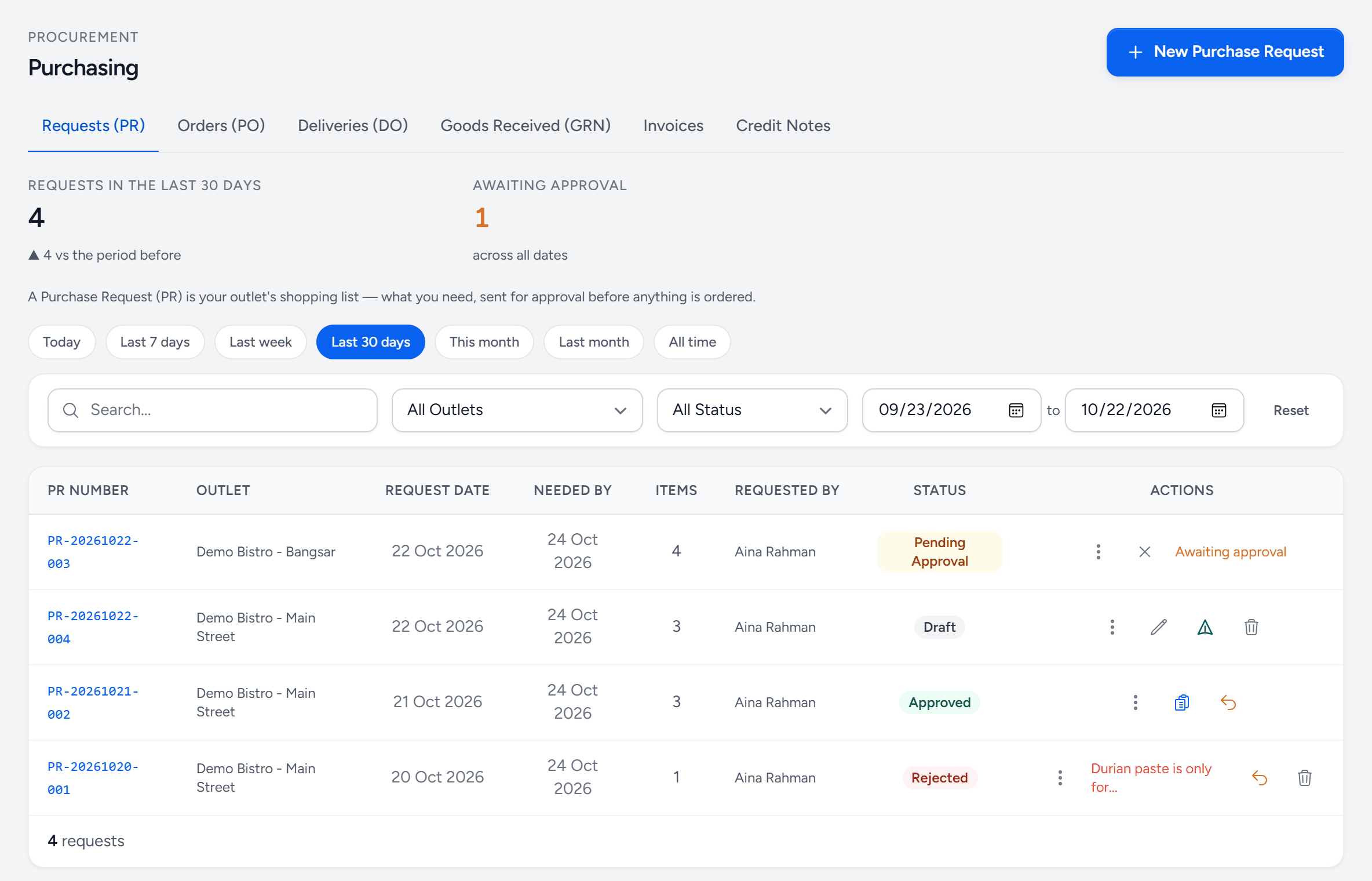
- Requests (PR) — what the outlets have asked for.
- Orders (PO) — what the suppliers have been told to send.
- Goods Received (GRN) — deliveries waiting to be received, and what actually arrived. Deliveries (DO) sits just before it.
- Invoices — what the suppliers have charged, checked against the GRN.
- New Purchase Request — the button follows the tab: on Orders it raises an order.
- Awaiting approval — how many are waiting for an approver, whatever the dates.
- Pending approval — each row says where it is. The actions beside it are what you can do with it now.
- Rejected — with the approver's reason beside it.
You probably do not need all five
Under Settings → PO Approvers your company decides how much of the chain to use.
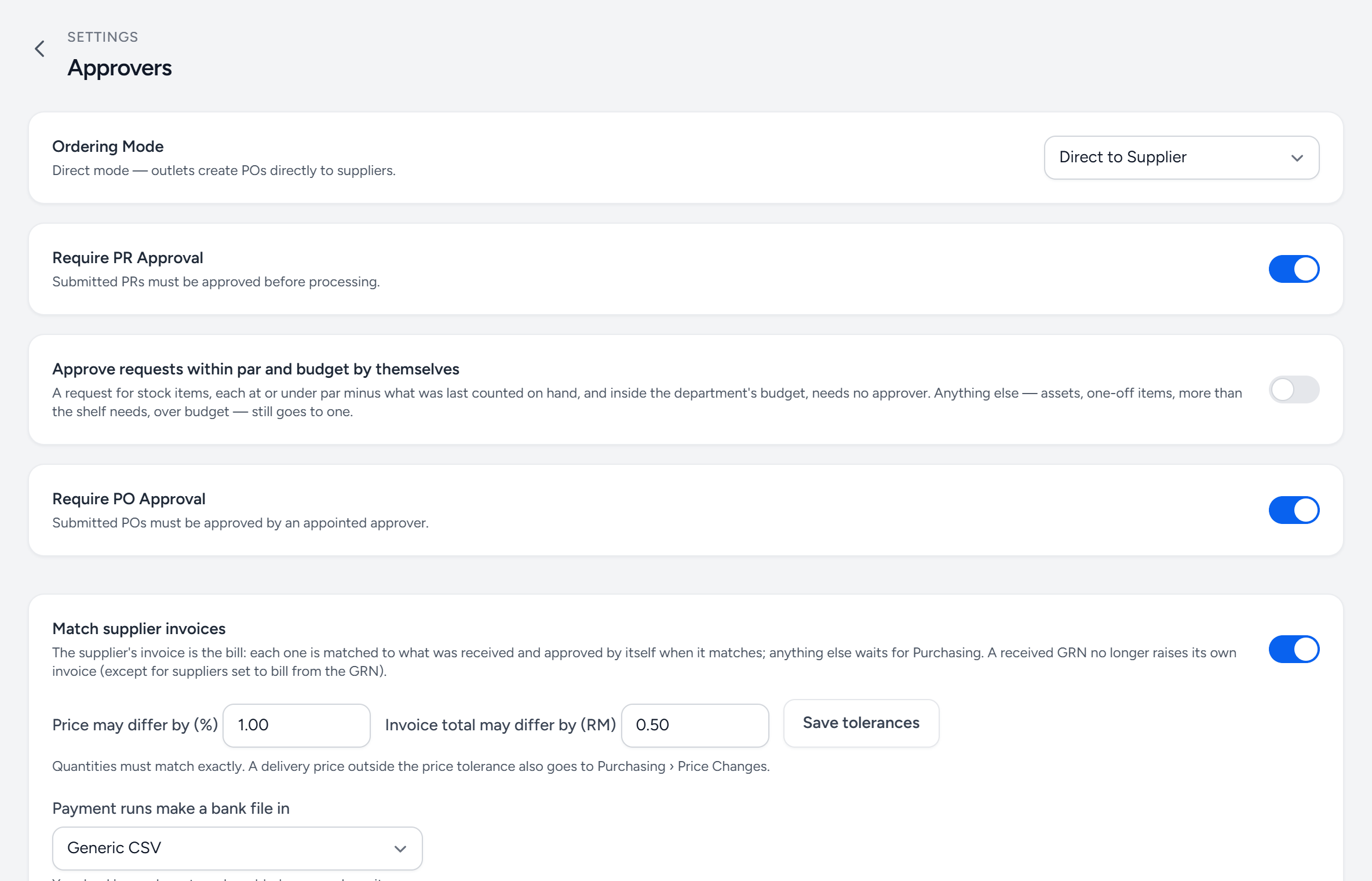
- Ordering Mode — each outlet orders straight from its suppliers, or a Central Purchasing Unit gathers the outlets' requests and orders for them.
- Require PR Approval — a request cannot become an order until an approver signs it.
- Within par and budget — with PR approval on, a request that only tops stock up to par, within budget, approves itself.
- Require PO Approval — an order cannot go to the supplier until an approver signs it.
- Match supplier invoices — every supplier invoice is checked against what arrived and the agreed price before anyone pays it.
- Tolerances — how far a price and an invoice total may differ and still count as matching.
- Bank file — the format Payment Runs write for your bank.
The delivery order is never typed in: approving an order (or submitting it, where orders are not approved) opens its delivery straight away, ready for the outlet to receive.
A small single-outlet operation might use only PO and GRN. A group with a central purchasing unit uses all five.
Why the GRN is the important one
The GRN is where reality enters the system. It sets stock on hand, and it is what the supplier's invoice is checked against. An order that was never received changes nothing. A different price on the supplier's paper goes to Purchasing to accept; once accepted it changes your ingredient costs, and through them every recipe. See Receive a delivery.
Still stuck?
Tell us what you were trying to do — a person on our team will reply. If this guide is missing a step or out of date, say so and it gets fixed in the manual, not just in an email.