Purchasing
Raise and send a purchase order
Turn requests into orders, split them by supplier, and email them out as a PDF.
3 min read · Last reviewed 23 Oct 2026
A purchase order is the instruction you send a supplier. It carries agreed prices, so it is also the thing an invoice gets checked against.
Three ways to start one
- From approved requests — this is the normal route. With a Central Purchasing Unit, Process Requests takes every outlet's approved lines at once, and the lines to buy become draft orders, one per supplier and delivery point (see Process requests). Otherwise Convert to PO on an approved request starts an order filled from it.
- From scratch — New order, pick the supplier, add lines. For repeat buying nobody needed to request.
- From a form template — a saved list of what you buy from a given supplier every week, so the order is a matter of filling in quantities.
Multiple suppliers on one list
If you build an order with items from several suppliers, Servora splits it when you save: one purchase order per supplier, each with its own number. You do not have to sort the list yourself.
Prices
Each line's unit cost defaults to the last price you paid that supplier for that item. Change it if you have negotiated something different — the price on the PO is the price the invoice will be checked against.
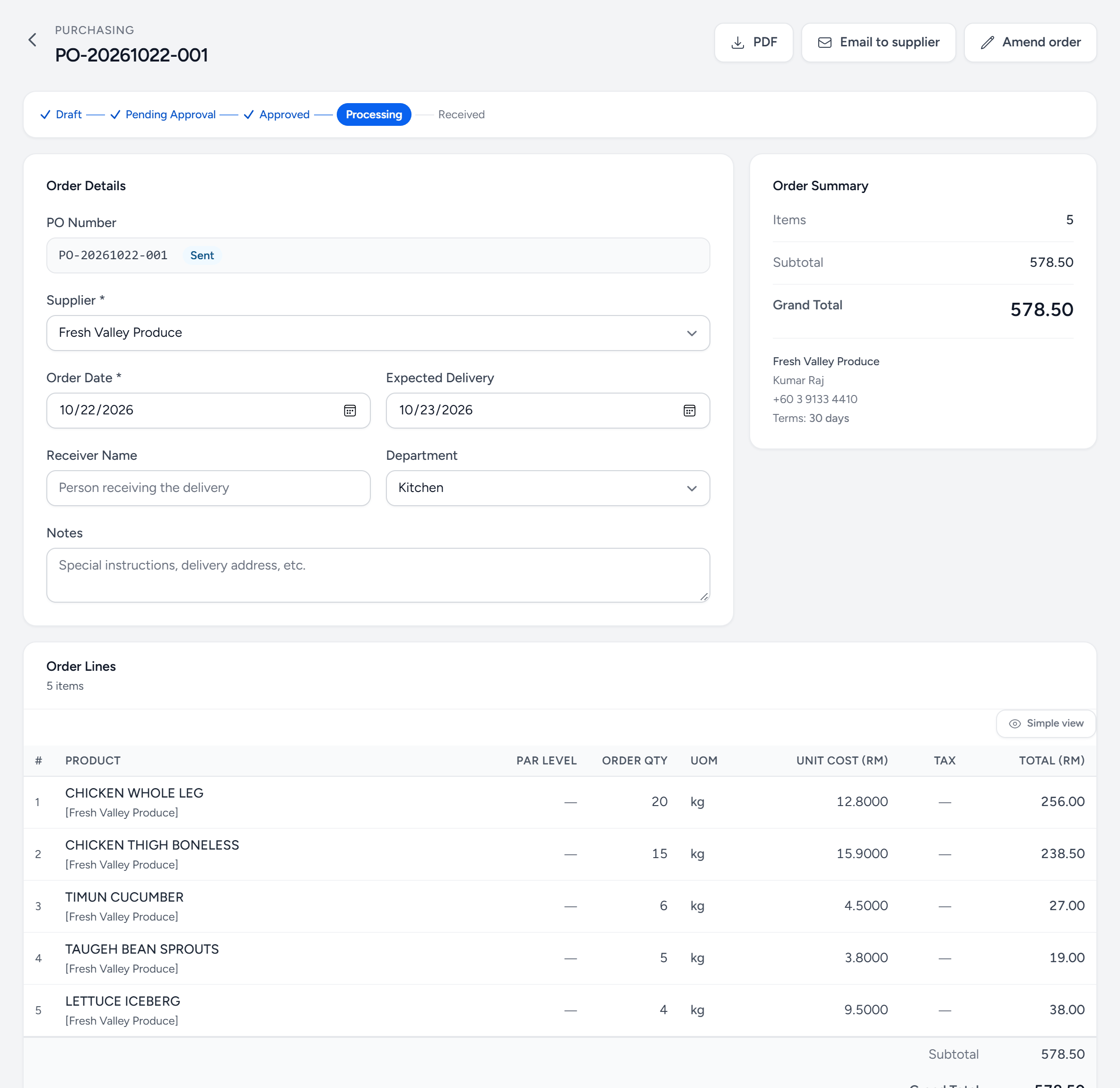
- Where it is — Draft, Pending Approval, Approved, Processing — out with the supplier — and Received.
- PDF — download it to share on WhatsApp or by hand. Nothing is emailed.
- Email to supplier — sends the PDF to the supplier's email address, copying the approver and the person who raised it.
- Amend order — change it before it is delivered — an item the supplier is out of, say. The change and its reason are kept.
- Expected Delivery — the day the outlet expects it. It shows in their deliveries for that day.
- Unit cost — the agreed price. The delivery and the invoice are both checked against it.
- Grand Total — what this order is worth, and what it takes off the department's purchase budget.
Approval and sending
If your company requires PO approval, the order waits for an approver to sign it. Approving it — or submitting it, where orders are not approved — opens the delivery for the outlet to receive. Approving never emails the supplier — you choose how the order goes out:
- By email — press Email to supplier on the order, or the envelope on its row in the list. The PDF goes to the supplier's email address, copying the approver, the person who raised it and your company's PO CC list.
- By WhatsApp or by hand — download the PDF from the order and share it yourself. Nothing is emailed.
Nothing is sent until you press the button, so a supplier never gets the same order twice.
Where your company matches supplier invoices, the PDF carries a QR code: the supplier's own invoice link, already tied to this order. They scan it and drop the invoice there. See Supplier invoices.
With a Central Purchasing Unit, only Purchasing writes orders and deliveries. Outlets see them, read-only.
Changing an order after it has gone
Do not edit a sent order to match what turned up. Receive what actually arrived on the GRN — Servora keeps the difference as a shortfall against the order rather than pretending you ordered less. That variance is the number that tells you which suppliers under-deliver.
Still stuck?
Tell us what you were trying to do — a person on our team will reply. If this guide is missing a step or out of date, say so and it gets fixed in the manual, not just in an email.