Purchasing
Raise a purchase request
Tell head office what your outlet needs, without needing to know who supplies it or what it costs.
3 min read · Last reviewed 23 Oct 2026
A purchase request says what we need. It deliberately does not say who from or at what price — that is the buyer's job, and asking a chef for it is how you end up with three people ordering onions from three suppliers.
Raising one
- Go to Procurement → Orders & Requests and choose New Purchase Request.
- Confirm the outlet and, if you use them, the department.
- Add a line per item: ingredient, quantity, unit. Start typing the ingredient name and pick it from the list. If your outlet has par levels, Top up to par fills every line still at zero with what brings it back to par: the par, less what is on hand if the item was counted in the last 90 days.
- Add a note if the request needs context — an event, a promotion, an unusual quantity.
- Save & Submit. Save Draft leaves it visible only to you.
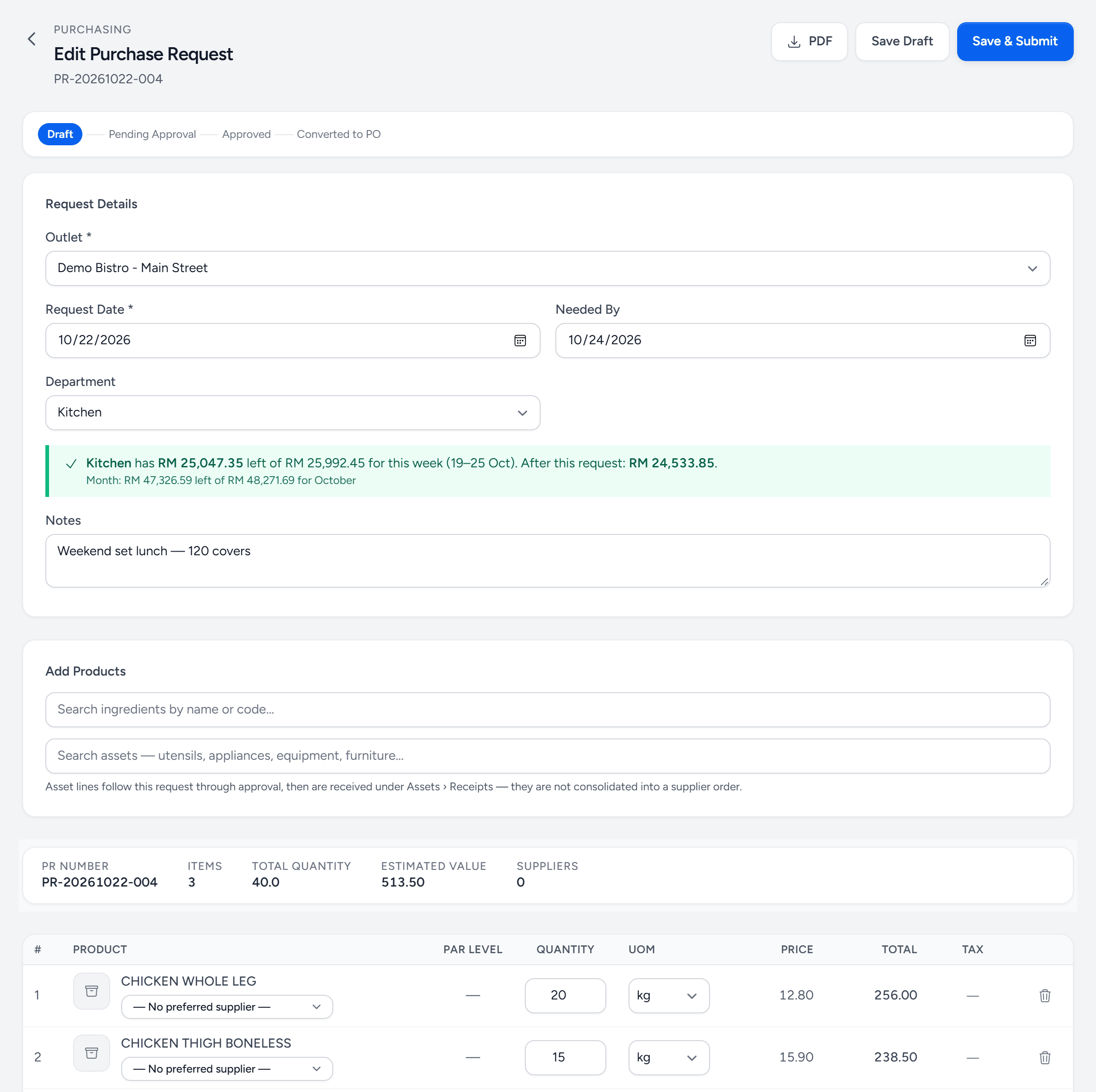
- Where it is — Draft, then Pending Approval, Approved and Converted to PO.
- Needed By — when the outlet needs it. The buyer orders to arrive by then.
- Budget — what the department has left this week and this month, before and after this request. Red means it goes over, and you are asked why.
- Add products — type a name or code. Assets have their own search underneath.
- Par level — the outlet's par for the item, when it has one.
- Preferred supplier — optional. Leave it to the buyer unless it matters.
- Save & Submit — sends it for approval. Save Draft keeps it to yourself.
What happens next
If your company requires PR approval, the request waits for a PR Approver, who is told on their phone and sees it on their own Orders & Requests screen. You are told when it is approved or rejected. If approval is not required, it goes to Purchasing straight away.
Where your company allows it, a request that only tops stock up to par, and stays within the department's purchase budget, approves itself. It says so on the request.
Purchasing then fills it. Where your company buys through a Central Purchasing Unit, Purchasing decides line by line how each item is filled — bought from a supplier, sent from the central kitchen's store, or made by the central kitchen — on Process Requests, and requests from several outlets for the same ingredient are merged into one line on one order to that supplier. That is the point of doing it this way rather than each outlet ordering separately. See Process requests. Otherwise an approved request becomes a purchase order with Convert to PO.
Your request shows each line's own progress — Ordered from supplier, Coming from store, Central kitchen making it, Received — so you can see where each item is, not just the request as a whole.
Statuses
| Status | Means |
|---|---|
| Draft | Yours. Nobody else is looking at it. |
| Pending Approval | Submitted, waiting for an approver. |
| Approved | Waiting for Purchasing to decide how each line is filled. |
| Converted | An order has been raised from it — or, with central purchasing, every line has been dealt with: ordered, sent from the store, made by the kitchen, or marked not supplied. |
| Rejected | Declined. The reason is on the record. |
The same order every week
Bread on Mondays and Thursdays, milk every day: make it a standing order under Procurement → Standing Orders — the days, the time, how many days ahead it is needed, and the lines, either fixed quantities or top up to par. Servora raises the request by itself at that time, and it goes through the same approval as one typed by hand.
If it is urgent
Do not raise a second request. Find the first one and ask the approver — a duplicate request becomes a duplicate order becomes a duplicate delivery, and the stock arrives twice.
Still stuck?
Tell us what you were trying to do — a person on our team will reply. If this guide is missing a step or out of date, say so and it gets fixed in the manual, not just in an email.