Purchasing
Supplier invoices and AI scanning
Record what you have been charged, let Servora read the invoice for you, and check it against what you received.
3 min read · Last reviewed 22 Oct 2026
The supplier invoice is the last document in the chain and the one people most often skip. It is worth it: it is what catches being charged for goods you sent back.
How invoices come in
- Upload it — Procurement → Orders & Requests → Invoices → AI Receive Invoice, then a photo or PDF. Servora reads the supplier, the invoice number, the date and the lines in the background.
- At the door — when the paper photographed while receiving is the invoice, it becomes the invoice as well.
- From the supplier — each supplier can have their own invoice link, printed as a QR code on every purchase order. They drop the invoice there and follow it through to paid. See Suppliers.
- From LHDN — validated e-invoices, exactly as LHDN holds them. See Receive suppliers' LHDN e-invoices.
Matching
With Match supplier invoices on (Settings → PO Approvers), every invoice is checked line by line against what was received and the price that was agreed:
- Everything agrees, within your company's tolerances → it approves itself and waits to be paid.
- Anything does not → it waits under Invoices → To check for Purchasing, with the reason spelled out.
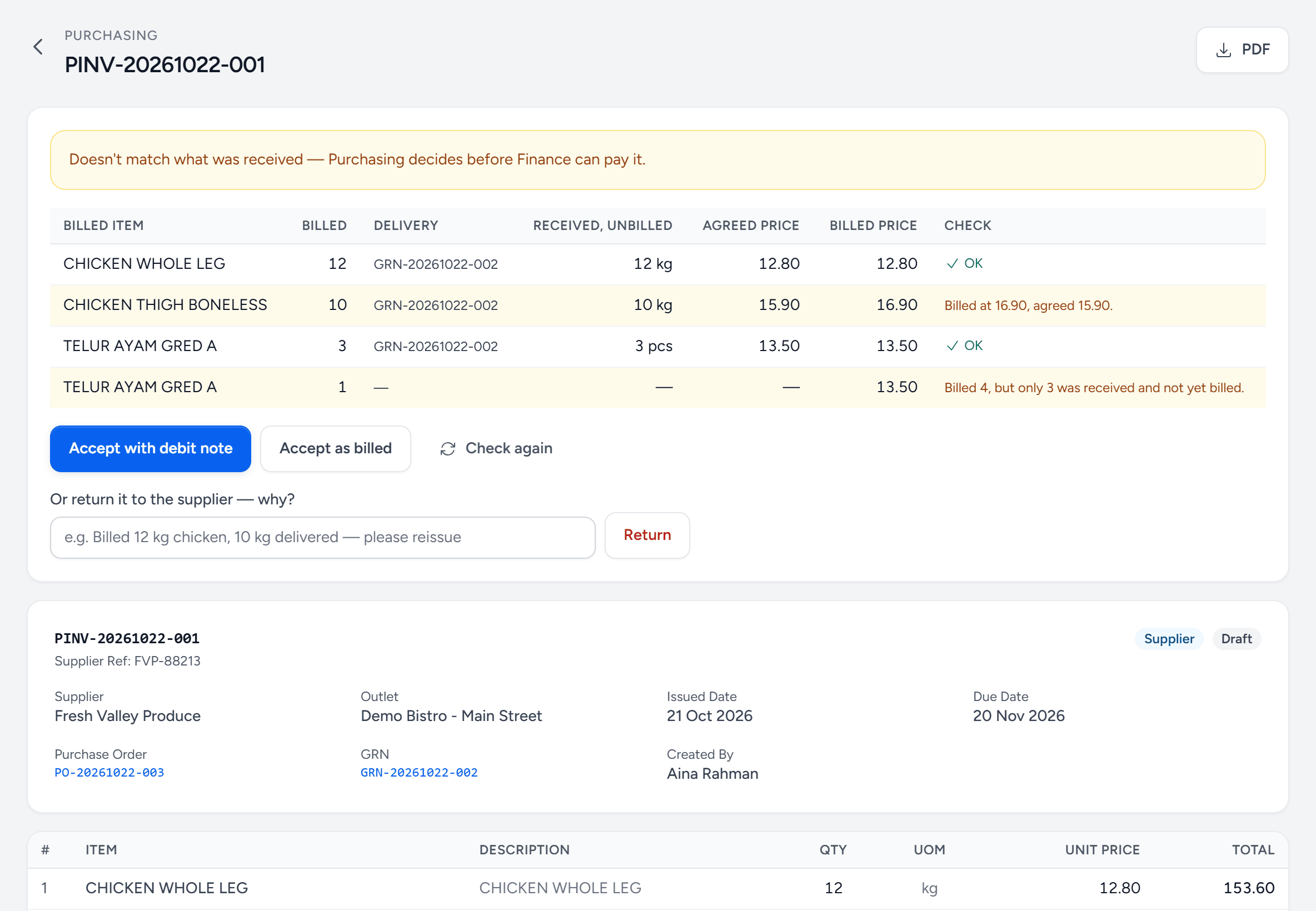
- Why it is here — in one line. Finance cannot pay it until Purchasing decides.
- Received, unbilled — what arrived on that delivery and has not been billed yet.
- Agreed price — the order's price, or the one Purchasing accepted at receiving.
- A price difference — billed at more than was agreed.
- Billed, not received — more billed than arrived. It is its own line so it cannot hide.
- Accept with debit note — pay for what arrived at the agreed price. The rest becomes a debit note to the supplier.
- Accept as billed — pay it as it is — the supplier was right.
- Return — send it back with a reason. The supplier sees it on their link.
Deliveries received but not billed yet are listed under Received, not invoiced — which is also what you owe at month end.
Servora never takes bank details from an invoice. One that asks to be paid into an account you do not have on record for that supplier waits for Purchasing, and changing a supplier's bank account needs a second person.
Without matching
When your company does not match invoices, each goods received note raises its own invoice, every line filled in with what was received. The same is true for a supplier set to bill from the GRN — one that never sends an invoice of its own.
What the scan gets right, and what to check
AI reading is good at printed invoices and reasonable at photographs of them. It is not infallible. Where a supplier calls something by a different name than you do, teach it once under Product Mapping — or pick the item on the invoice line, and Servora remembers it for that supplier.
Statuses and payment
| Status | Means |
|---|---|
| Draft | Captured, not yet confirmed — or waiting for Purchasing to check it. |
| Issued | Confirmed and payable. |
| Paid | Settled — record part payments as they go and the balance updates. |
| Overdue | Past its due date and still unpaid. |
| Cancelled | Returned to the supplier, with the reason. |
Finance pays approved invoices together under Procurement → Payment Runs: pick what is due, download the bank file, and mark the run paid. The supplier's link shows Paid with the date.
These are your suppliers' invoices to you. Your own Servora subscription invoices are a different thing entirely, under Billing.
Still stuck?
Tell us what you were trying to do — a person on our team will reply. If this guide is missing a step or out of date, say so and it gets fixed in the manual, not just in an email.