Purchasing
Suppliers, product mapping and price alerts
Set suppliers up once, teach Servora their product names, and get told when a price moves.
3 min read · Last reviewed 22 Oct 2026
Suppliers
Under Procurement → Suppliers, each supplier needs at minimum a name. Add the email and purchase orders can be sent from Servora; add payment terms and invoices calculate their own due dates.
Suppliers can also be given portal access — their own login where they see the orders you have sent them and can confirm deliveries. That is optional and off by default.
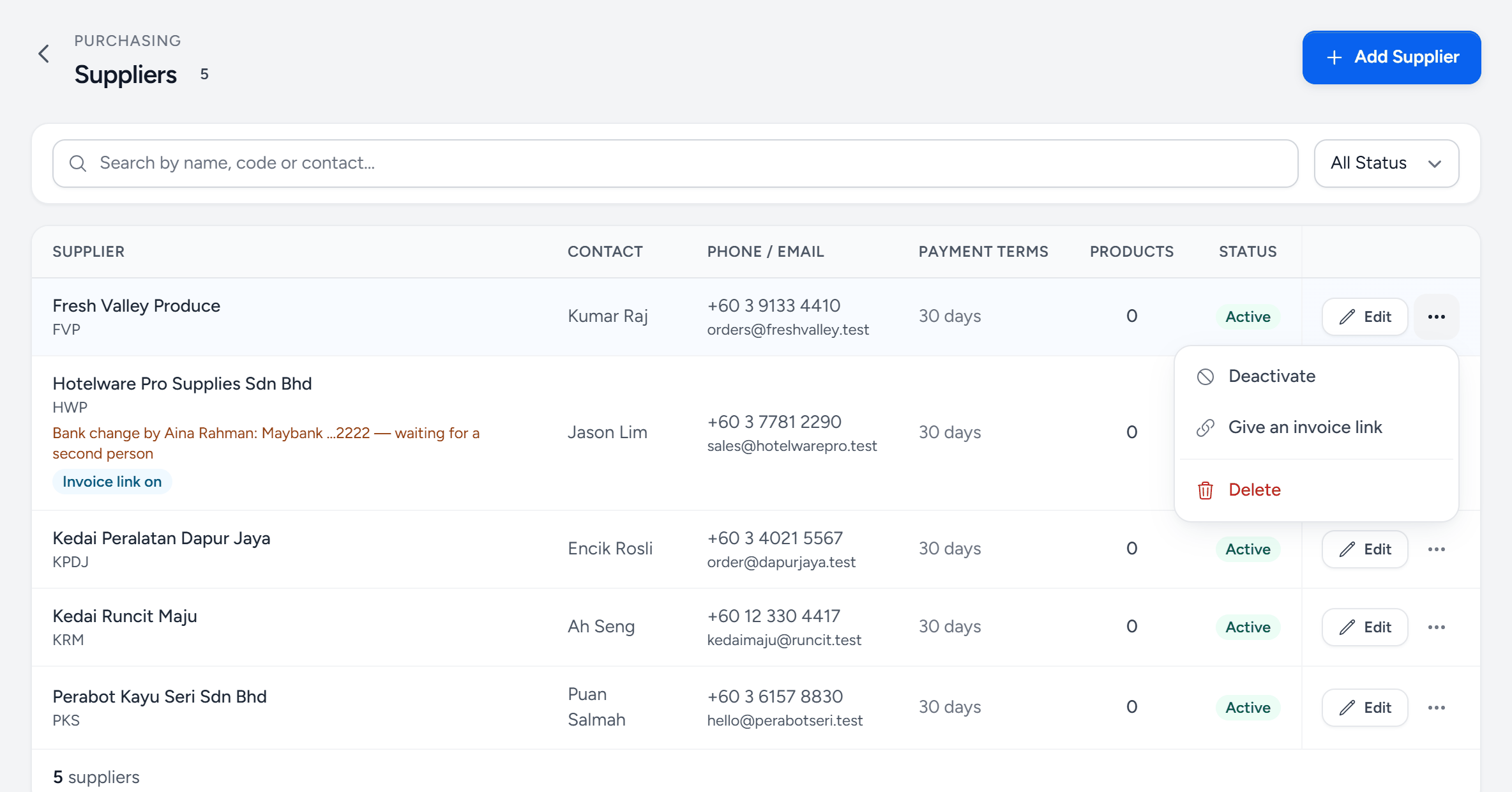
- Add Supplier — name, code, contact, email, payment terms, TIN and bank details.
- Search — by name, code or contact.
- Payment terms — how many days an invoice has. The due date is worked out from it.
- Waiting bank change — someone changed the bank account. It is used once a second person approves it.
- Invoice link on — this supplier has a live invoice link.
- The row menu — give an invoice link, issue a new one, switch it off, or deactivate the supplier.
The invoice link
Where your company matches supplier invoices, give a supplier an invoice link from the menu on their row. It is theirs alone: they open it, drop their invoices — PDF or photos — and see each one through Received, Approved and Paid, or why it was returned. The same link is printed as a QR code on every purchase order, already tied to that order. New invoice link replaces it; Switch off invoice link stops it.
Bank details
A supplier's first bank account is saved straight away. Changing it afterwards waits for a second person who looks after suppliers or pays invoices — the row says who asked — and Servora never takes bank details from an invoice. That is how most invoice fraud is stopped.
Product mapping
Your supplier calls it "CHKN THIGH B/L 10KG CTN". You call it "Chicken thigh, boneless". Product Mapping is where you tell Servora those are the same thing, once. After that, every scanned invoice and imported price list from that supplier matches automatically.
Mapping is per supplier, because two suppliers use two different codes for the same item — and that is the whole reason the problem exists.
Form templates
A form template is a saved order sheet for one supplier: the twenty things you buy from them every week, in the order you walk the store. Ordering becomes filling in quantities rather than searching for items.
Price alerts
Set the threshold at the top of Procurement → Price Alerts — say 10%. Every morning Servora compares each supplier's latest price with the one before, across several deliveries if it crept up a little at a time, and raises an alert for any change of at least that much. Alerts appear on the dashboard and under Price Alerts.
An alert is not a block. It exists so that somebody notices before the month-end report tells them. A price that differs from the order at the door is a different thing — that is a price change, and Purchasing decides it.
Set the threshold to something you will actually act on. At 2% you will get an alert every week and stop reading them; at 25% you will only hear about disasters.
Price history
Every cost change is recorded with its date, the old price, the new price and who or what caused it — a delivery, an imported price list, or a manual edit. Open any ingredient and look at its history, or run the Price history report across the whole list.
Still stuck?
Tell us what you were trying to do — a person on our team will reply. If this guide is missing a step or out of date, say so and it gets fixed in the manual, not just in an email.