Outlet audits
Run an outlet audit, and close every finding
Walk the outlet with a scored checklist on a phone, get Pass, Conditional pass or Fail, and turn every failed point into a fix that somebody owns.
5 min read · Last reviewed 19 Oct 2026
An outlet audit is a walk through the outlet with a scored checklist: hygiene, food storage, temperatures, cleanliness, service. Servora runs it on a phone or tablet, scores it, and turns every failed point into a fix that somebody owns, with a photo to prove it was done.
The pictures on this page are from a demo company. Tap the numbers on a picture to see what each part does.
1. Pick a form
Under Audits → Audit Settings → Audit Forms, either Install ROSE starter (a ready-made, bilingual form with about 300 checks in five sections) or build your own with + New form. Every change in the form builder saves as you make it.
- Sections are scored as an Area (points pooled for the section) or as a Penalty (points taken off the total; any failure there is a major finding).
- Items are a Check, a Product (something tasted or measured) or Info, each with its points and a hint for the auditor.
- Editing a form never changes past audits: each audit keeps a copy of the form it was started on.
2. Run the audit
Audits → + New audit, choose the form, the outlet and the date, and Start audit. The time in is stamped when you start and the time out when you submit. The audit screen is built for a phone held in one hand: big buttons, and every tap is saved straight away, so it needs a connection.
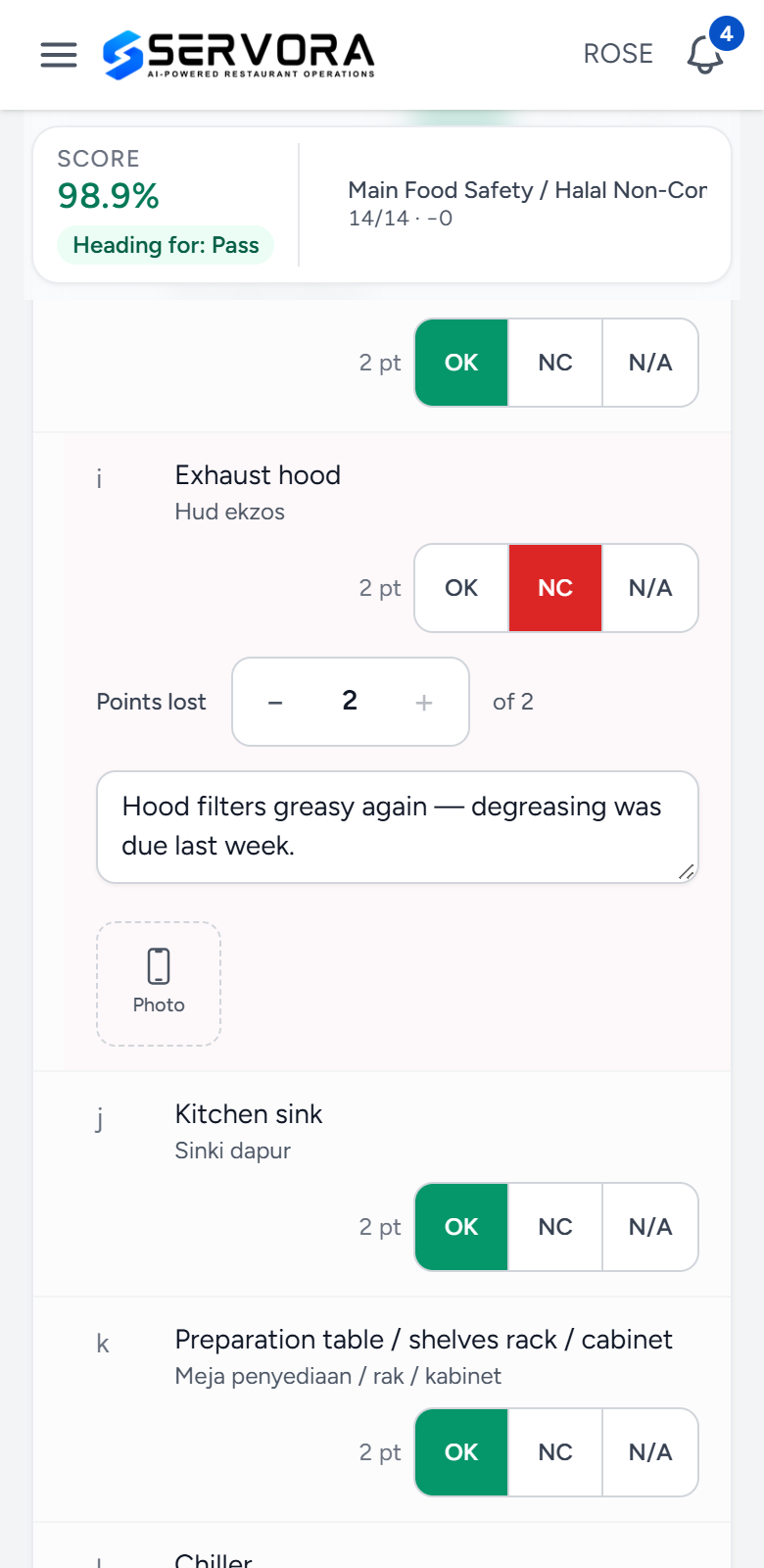
- Heading for — the score so far and the outcome it is heading for, as you go.
- OK, NC, N/A — one tap per line, saved straight away.
- Points lost — how serious it is, up to the line’s points.
- The finding — what you found, in words the outlet can act on.
- Photo — up to six photos per finding, taken with the phone’s camera.
- For each line choose OK, NC (non-conformance) or N/A.
- On an NC, set the points lost, write what was found (this becomes the finding) and add up to six photos.
- Mark the rest OK finishes a section where everything else passed.
- Submit audit is refused while any line is unanswered, so nothing is skipped by accident.
3. The result
| Outcome | Needs |
|---|---|
| Pass | 90% or more overall, no major NC, and every area section at 80% or more |
| Conditional pass | 80% or more overall, at most one major NC, and every area section at 70% or more. A re-audit is due within 30 days |
| Fail | Anything below that |
The outlet acknowledges the audit with a name, position and signature, and PDF report gives a report with the score, each section, twelve months of history and every finding with its photos.
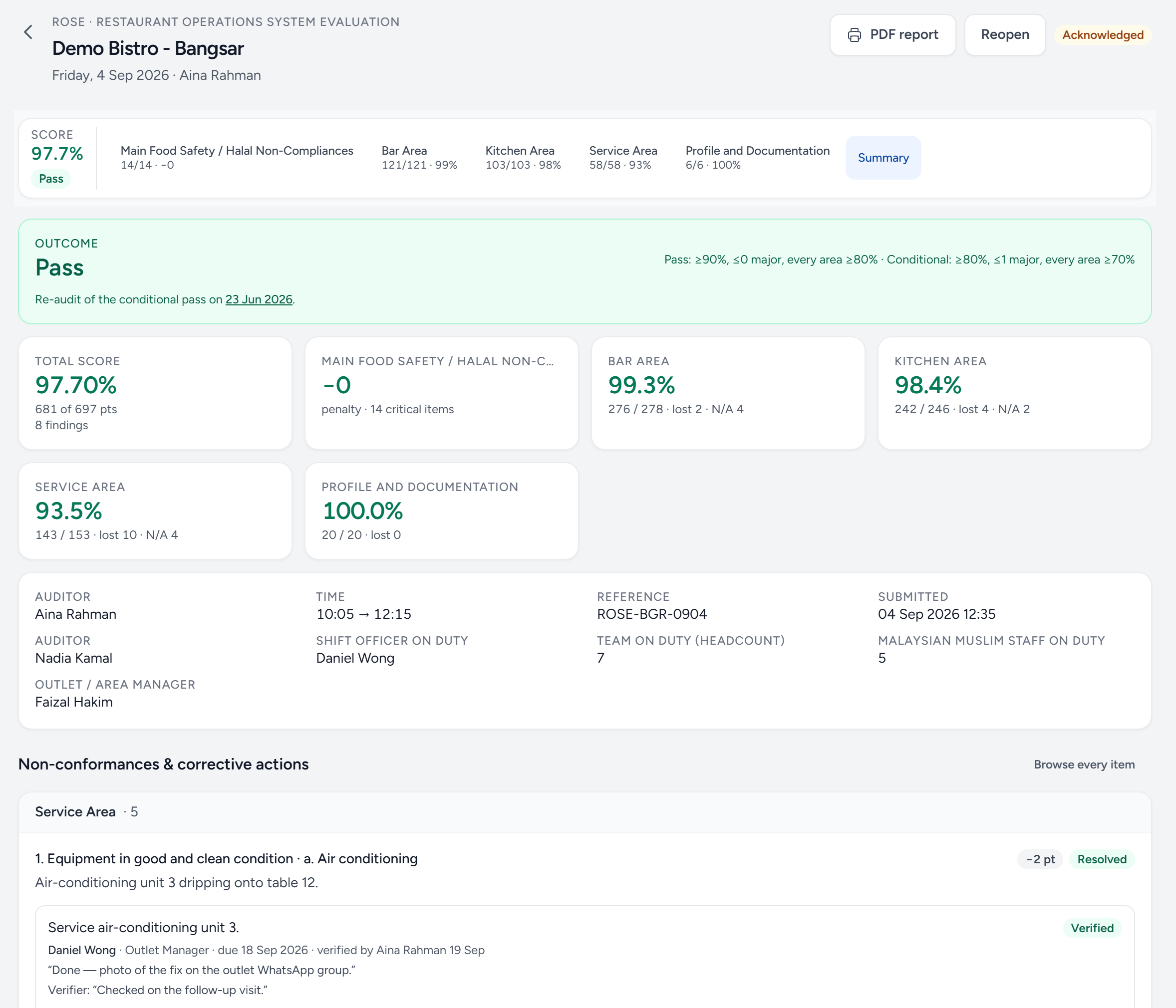
- PDF report — the score, sections, sign-off, twelve months of history and every finding with photos.
- Score and outcome — always visible at the top while you audit and afterwards.
- Sections — jump between sections; each shows its own score.
- Outcome — Pass, Conditional pass or Fail, by the rules printed beside it.
- Re-audit — a conditional pass is followed up within 30 days, and the two audits are linked.
- Total score — points scored of points possible, after penalties.
- A finding — the line that failed, the points lost and what was found.
- Its corrective action — who fixed it, by when, and who verified it.
4. Close every finding
On each finding, + Corrective action: what will be done, who owns it and by when (a week by default). It then moves Open → In progress → Done → Verified.
- The owner can mark their own actions in progress or done, with a photo of the fix, from Audit fixes on the Staff Portal.
- Only someone whose role can manage corrective actions can Verify, with a verification photo. The audit closes itself once it is acknowledged and every finding is verified.
- Audits → Corrective Actions lists every outstanding action across outlets, the overdue ones, and findings that have no action yet.
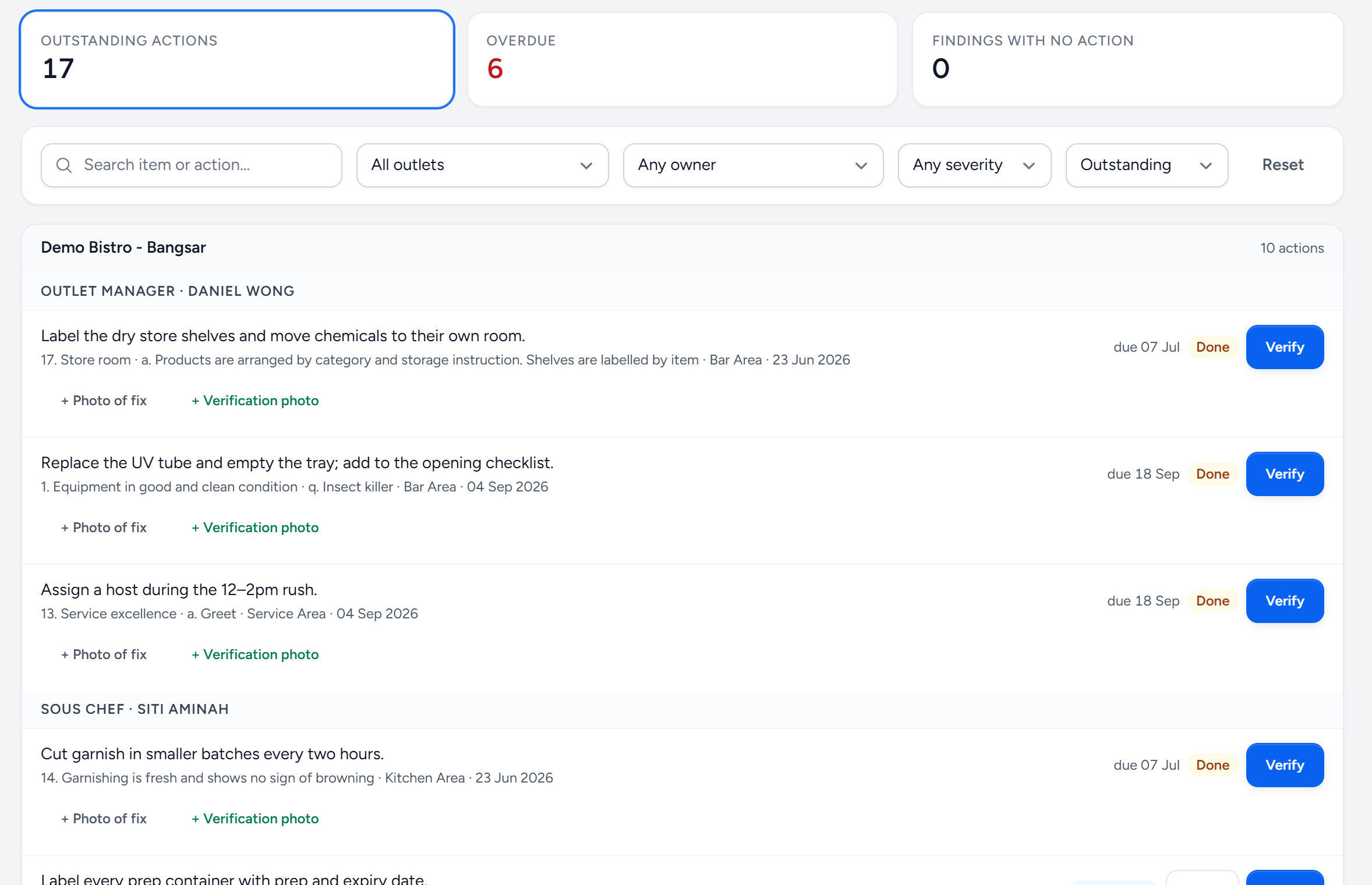
- Outstanding actions — everything not yet verified, across your outlets.
- Overdue — past their due date. Chase these first.
- Findings with no action — failures nobody has taken on yet. This should be zero.
- Filters — by outlet, owner, severity (major or minor) and status.
- Grouped by owner — each person sees their own list at a glance.
- Done, then Verify — the owner marks it done; a manager checks it and verifies.
- Photos — a photo of the fix from the owner, and a verification photo from whoever checks it.
5. Keep it regular
Audits → Schedule sets how often each outlet is audited on each form: weekly, monthly, quarterly, every six months or yearly, with an auditor if you want a named one. Overdue audits are emailed as a reminder at 8 am, and re-audits owed by a conditional pass appear on the schedule by themselves. Reports → Audits → Audit Score Trend shows the scores over time by outlet and by section, and the items that fail most often.
Common questions
Can I audit offline?
No. Every tap is saved to Servora as you go, so a dropped connection never loses an audit, but you need a connection while auditing.
We submitted with a mistake.
Someone with permission can Reopen it. It goes back to draft and the signature is cleared, so it has to be acknowledged again.
Who can be picked as the auditor?
The people appointed under Audits → Audit Settings → Appointed Auditors.
Still stuck?
Tell us what you were trying to do — a person on our team will reply. If this guide is missing a step or out of date, say so and it gets fixed in the manual, not just in an email.