Servora MCP
Run Servora MCP for your company (Company Admins)
Switch it on, decide who may connect, see every connected app and disconnect any of them.
3 min read · Last reviewed 23 Oct 2026
Servora MCP stays off for a company until a Company Admin switches it on. This page is the admin's side of it: the switch, who may connect, and keeping an eye on the apps that are connected.
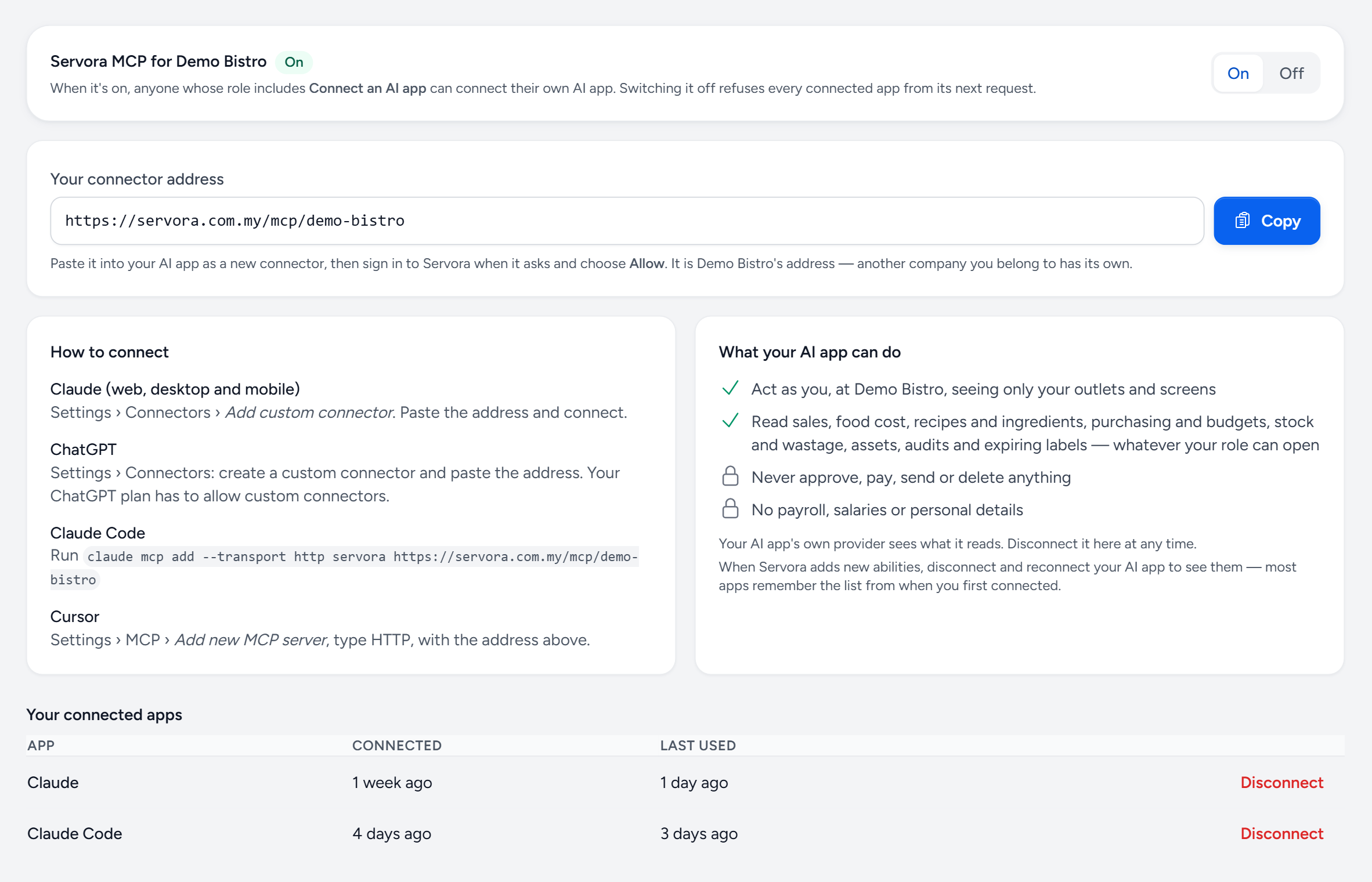
- On / Off — the company switch. Only a Company Admin sees it.
- Connect an AI app — the permission that decides who may connect, once it is on.
- Last used — when each app last asked Servora something.
- Disconnect — cuts that app off straight away.
Before you switch it on
- Servora MCP comes with the AI Insights add-on, and with the Full plan. Add it under Billing if the screen says your plan does not include it.
- The answers pass through the AI provider (Anthropic for Claude, OpenAI for ChatGPT, and so on) under that provider's own terms. Agree which AI accounts the company is happy to use for business information.
Switch it on or off
Open Settings → Servora MCP and choose On. From then on, anyone whose role includes Connect an AI app can connect their own AI app.
Choose Off and every connected app is refused from its very next question. Switching off does not delete anyone's connection: to end one for good, use Disconnect.
Who may connect
The Connect an AI app permission. As standard it is on Company Admin, Operations Manager, Branch Manager, Finance, Purchasing and Owner (View Only), and off for Chef. Change it for a role under Settings → Roles & Access.
The permission only decides who may connect. What each app can read is still that person's role: their outlets and the screens they can open. See What Servora MCP can read.
Everyone's connected apps
Below your own apps, a Company Admin also sees Everyone else's connected apps: each app with the person's name and email, when it was connected and when it was last used. Disconnect on any row cuts that app off straight away. It can only read Servora again if that person connects it afresh.
When someone leaves, or changes role
Servora checks the person on every question, not only when they connected. So their AI app is refused from its next question as soon as you:
- remove them from the company,
- suspend their account, or
- take Connect an AI app off their role.
A smaller change of role, or of outlets, changes what their app can read in the same way.
More than one company
Each company has its own connector address and its own switch. Someone who works for two companies connects twice, once for each, and their AI app shows them as two connectors.
Common questions
Is there a charge per question?
No. Servora MCP comes with AI Insights. The AI app runs on the person's own AI subscription.
Can I stop one person without switching it off for everyone?
Yes. Disconnect their app here, and take Connect an AI app off their role if they should not connect again.
Still stuck?
Tell us what you were trying to do — a person on our team will reply. If this guide is missing a step or out of date, say so and it gets fixed in the manual, not just in an email.