Reports & analysis
Ask Claude or ChatGPT about your business (Servora MCP)
Connect your own AI app to Servora and ask it about sales, food cost, stock and purchasing in plain words. It sees only what you can see, and it can never change anything.
5 min read · Last reviewed 19 Oct 2026
If you already use Claude, ChatGPT or Cursor, you can connect it to Servora and ask it questions about your own business:
"How did Main Street do last week against target, and what drove food cost up?"
"Which suppliers raised prices this month, and which dishes does that hurt?"
"What does Bangsar need to reorder before the weekend?"
The AI app reads the answer out of Servora, live, and replies in plain words. It acts as you: the same outlets and the same screens your role can open, nothing more. It can read; it can never approve, pay, send or delete anything.
Before you start
- Servora MCP comes with the AI Insights add-on.
- A Company Admin switches it on for the company (below). It is off until they do.
- Your role has to include Connect an AI app. Company Admin, Operations Manager, Branch Manager, Finance and Purchasing have it as standard.
Settings → Servora MCP
Everything lives on one screen, also linked from Business Intelligence → Servora MCP. The example is a demo company.
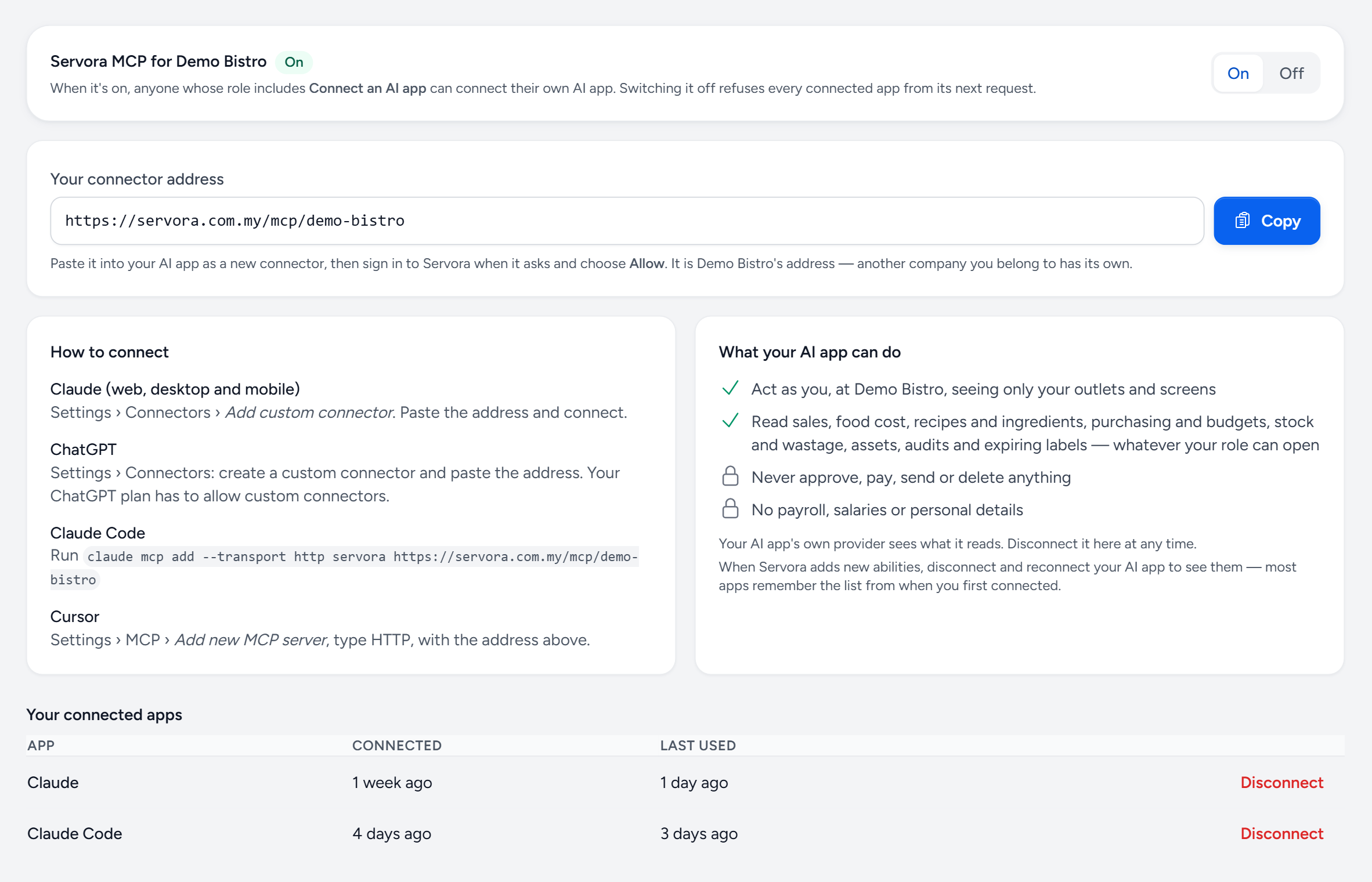
- On / Off — the company switch, for Company Admins. Switching it off refuses every connected app from its very next question.
- Your connector address — the address you paste into your AI app. It belongs to this company: another company you work for has its own.
- Copy — copies the address, ready to paste.
- How to connect — where the setting is in Claude, ChatGPT, Claude Code and Cursor.
- What your AI app can do — read sales, food cost, recipes and ingredients, purchasing and budgets, stock and wastage, assets, audits and expiring labels, as far as your role allows.
- What it can never do — approve, pay, send or delete anything. Payroll, salaries and personal details are never shared.
- Your connected apps — every AI app you have connected. Admins also see everyone else's, with the person's name.
- Last used — when the app last asked Servora something. "Not yet" means it was connected but never used.
- Disconnect — cuts that app off straight away. You can always disconnect your own; an admin can disconnect anyone's.
Connect your AI app
- In Servora, open Settings → Servora MCP and tap Copy.
- In your AI app, add a new connector with that address:
- Claude (web, desktop and mobile): Settings → Connectors → Add custom connector.
- ChatGPT: Settings → Connectors, create a custom connector. Your ChatGPT plan has to allow custom connectors.
- Cursor: Settings → MCP → Add new MCP server, type HTTP.
- Claude Code:
claude mcp add --transport http servorafollowed by the address.
- Your AI app opens a Servora sign-in. Sign in as yourself.
- Check the company and choose Allow.
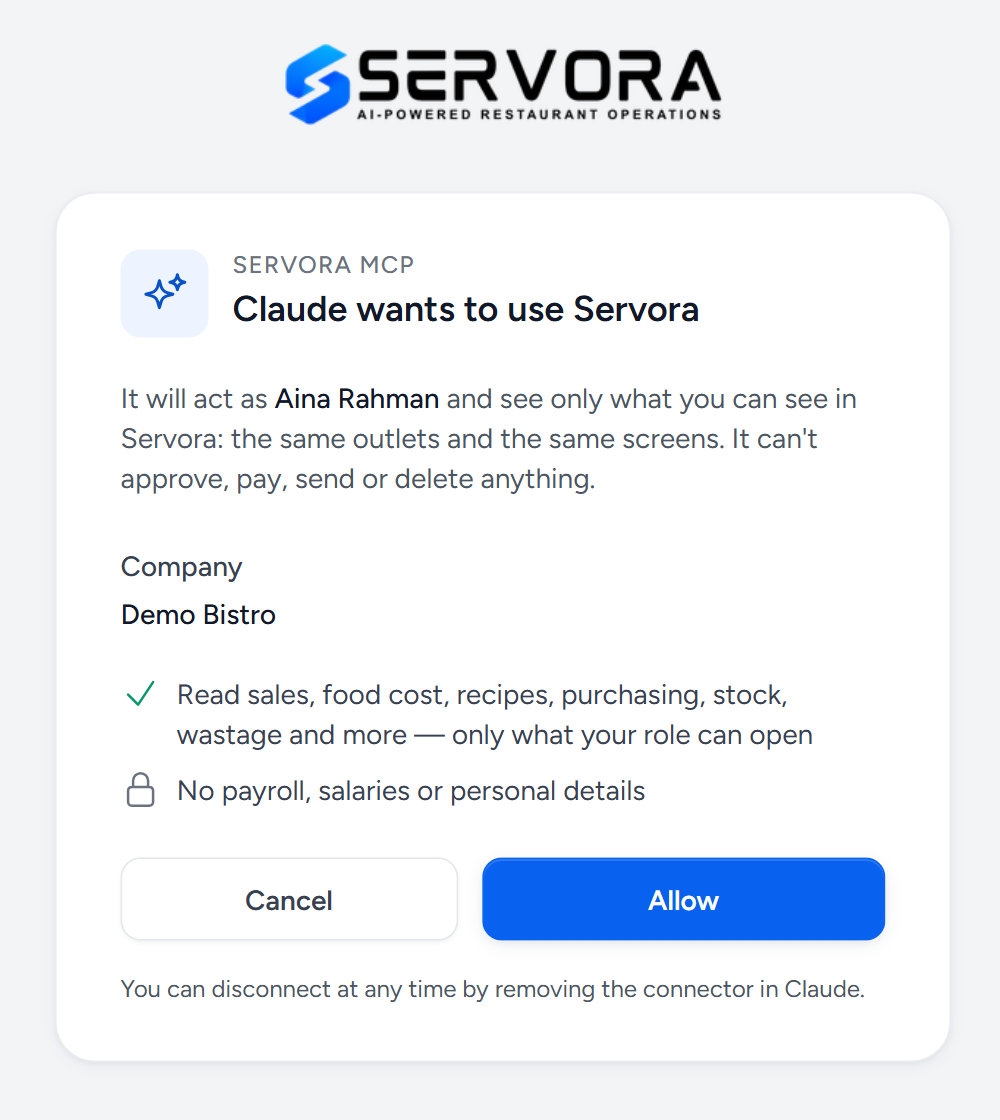
- Who it acts as — you. It sees exactly the outlets and screens you see, and nothing your role cannot open.
- Company — fixed by the address you pasted. Connecting another company is a separate connector with its own address.
- What is never shared — payroll, salaries and personal details stay out, whatever your role.
- Allow — finishes the connection. Go back to your AI app and start asking.
Good questions to ask
| Ask about | For example |
|---|---|
| How the business is doing | "Give me last week at a glance, with three things to act on this week." |
| Sales and targets | "Are we on track for this month's target at each outlet? What do we need per day?" |
| The menu | "Which dishes are Stars and which are Dogs this month? Any Stars over our food cost target?" |
| Costs and prices | "Which ingredients went up in price this month, and by how much?" |
| Purchasing | "How much of each department's purchase budget is left this week?" |
| Stock | "What is below par at Bangsar? What did we waste most of last month?" |
| Audits and food safety | "Which corrective actions from the last audits are still open? What labels expire today?" |
Some AI apps also show four ready-made prompts from Servora: a weekly review, the impact of price rises, a reorder check for an outlet, and a menu review.
Keeping it safe
- Read only. There is no question that makes it approve, pay, send or delete anything.
- Your role is the limit. If you cannot open a screen in Servora, your AI app cannot read it either. Change someone's role and their app changes with it.
- Your AI provider sees what it reads. The answers pass through Claude, ChatGPT or Cursor, under that provider's own terms. Connect only an AI account your company is happy to use for business information.
- Off means off. A Company Admin switching the connector off, or anyone pressing Disconnect, refuses the app from its next question.
- A connection that has not been used for 30 days asks you to sign in again.
Common questions
The screen says my plan does not include Servora MCP.
It comes with the AI Insights add-on. A Company Admin can add it under Billing.
The screen says it is not switched on.
Ask a Company Admin to switch it On in Settings → Servora MCP.
The screen says my role does not include connecting an AI app.
A Company Admin can add Connect an AI app to your role under Settings → Roles & Access.
The AI says it has no data for yesterday.
Sales arrive with the POS import, so the latest days may not be in yet. It is not reading them as zero.
Servora added something new, but my AI app does not know about it.
Most AI apps remember what a connector can do from the day it was connected. Disconnect and connect again to pick up the new abilities.
Still stuck?
Tell us what you were trying to do — a person on our team will reply. If this guide is missing a step or out of date, say so and it gets fixed in the manual, not just in an email.