Sales
Item sales, menu engineering and hero items
Bring in what each dish sold, match it to its recipe once, and see which dishes make the money: Stars, Plowhorses, Puzzles and Dogs, and the hero of every category.
7 min read · Last reviewed 19 Oct 2026
Daily sales tell you how much you took. Item sales tell you what you sold: how many of each dish, at what price, and what each one earned after its food cost. That is what the menu reports are built on.
The pictures on this page are from a demo outlet with made-up figures. Tap the numbers on a picture to see what each part does.
1. Bring in your item sales
Go to Sales → Item Sales and choose Upload product mix. Upload your POS's item-sales export, CSV or Excel. If your outlet uses POS Sync, item sales can arrive on their own and you can skip this step.
- A Zeoniq Product Sales Listing is recognised and read whole. Servora shows the dates, items and net sales it found and checks them against the report's own Grand Total before importing.
- Any other POS: pick the outlet and the POS system, then check the columns Servora guessed (item name, quantity sold and net sales are the ones it needs). If the file has no date column, give the date it covers; for a weekly or monthly mix, use its last day.
- Uploading the same days from the same POS again replaces them, so a corrected export never double-counts. If another POS already has sales on those days, you choose: Keep both (for example delivery orders) or Replace them (the outlet changed POS).
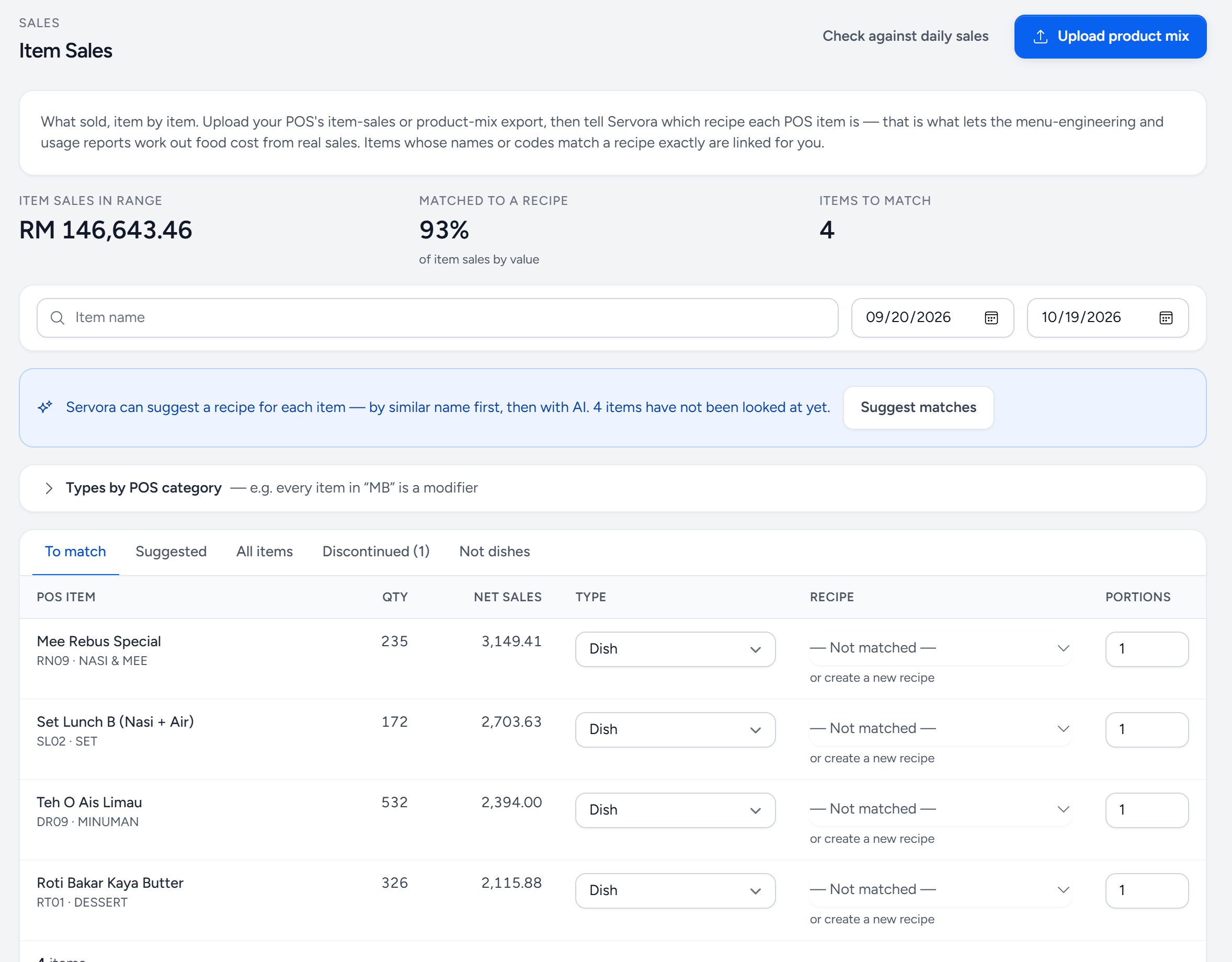
- Upload product mix — bring in your POS export. The same days from the same POS replace what was there.
- Matched to a recipe — how much of your item sales, by value, already has a food cost behind it. Aim for 95% or more.
- Items to match — POS items with no recipe yet. Their sales are left out of the menu reports until they are matched.
- Suggest matches — Servora guesses a recipe for each item, by similar name and then with AI, for you to accept or dismiss.
- Types by POS category — set a whole POS category at once, for example every item in "MB" is a modifier.
- The tabs — To match is your to-do list. Discontinued and Not dishes hold what is left out on purpose.
- Type — what the item is: Dish, Retail, Modifier, Discontinued dish, Packaging charge and so on.
- Recipe — pick the recipe that makes it, or create a new recipe straight from the item.
- Portions — recipe servings in one POS unit: 1.5 for a large, 0.5 for a half.
2. Match each item to a recipe, once
A POS item only has a food cost once it is linked to the recipe that makes it. You do this once per item; every later sale of it is costed automatically.
- Exact matches link themselves — same code or same name as a recipe.
- Suggest matches asks the AI (or, without an AI key, finds similar names) and marks each guess high, medium or low. Accept the good ones in one go, Dismiss the wrong ones and they are not suggested again.
- No recipe yet? + Create recipe makes one from the item, with the POS selling price. It shows No cost yet until you add its ingredients, and stays out of the menu reports until then.
- Portions is how many recipe servings one POS unit is: 1.5 for a large size, 0.5 for a half portion.
3. Tell Servora what each item is
Not everything rung through the till is a dish. The Type column decides where an item counts:
| Type | Use it for | In the menu reports? |
|---|---|---|
| Dish | Anything made from a recipe and sold on the menu | Yes |
| Retail | Bottled drinks, packaged goods sold as they are | Yes |
| Modifier / add-on | Add egg, extra sambal, upsize. Set Goes with so its sales and cost are spread over the dishes it is added to | Inside its dishes |
| Discontinued dish | Was on the menu, not any more. No recipe needed; old sales still count | No |
| Packaging charge, Open item, Deposit | Takeaway bags, open food keys, refundable deposits | No |
| Other — leave out | Anything else that is not food | No |
If a whole POS category is one type — every item in "MB" is a modifier — use Types by POS category to set them all at once, including items that appear in that category later.
4. Read the menu: Menu Engineering
Reports → Menu → Menu Engineering sorts every dish by two questions: does it sell (popularity), and does each portion earn its keep after food cost (contribution)?
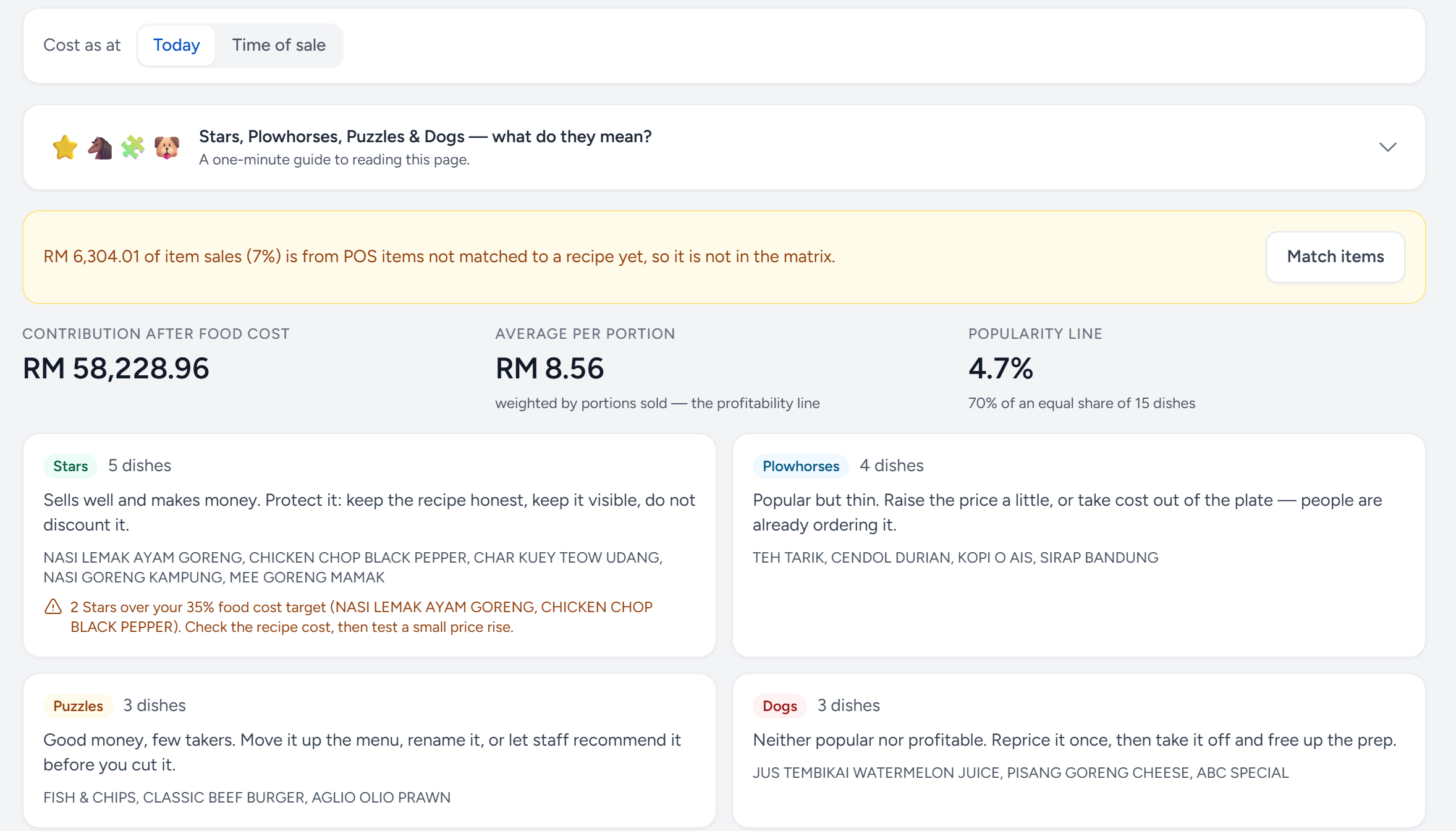
- Cost as at — Today uses today’s recipe cost; Time of sale uses each month’s own ingredient prices.
- What do they mean? — a one-minute guide to the four classes, on the page itself.
- Not in the matrix — sales from POS items with no recipe yet. Match items takes you to fix them.
- Contribution after food cost — what all matched dishes earned after their food cost.
- Popularity line — 70% of an equal share. A dish above it is popular.
- Stars — popular and profitable. Protect them.
- Over your food cost target — Stars that sell but cost too much to make. Check the recipe cost, then test a small price rise.
- Plowhorses — popular but thin. Take cost out of the plate or nudge the price.
- Puzzles — good money, few takers. Sell them harder before you cut them.
- Dogs — neither. Reprice once, then free up the prep.
| Class | Sells | Earns | What to do |
|---|---|---|---|
| Stars | Well | Well | Protect them. Keep the recipe and the portion exactly as they are |
| Plowhorses | Well | Little | Re-cost the recipe, trim the portion or test a small price rise |
| Puzzles | Little | Well | Sell them harder: menu position, the server's recommendation, a better photo |
| Dogs | Little | Little | Replace or remove, unless they bring people in for something else |
- Popular means the dish has at least 70% of an equal share of portions. With 10 dishes, that is 7% of all portions.
- Contribution is the average price after discounts (before SST and service charge) minus the food cost of one portion.
- A Star whose food cost % is over your company target gets a Cost over target badge: it sells, but it could earn more. Check the recipe cost first, then test a small price rise. The target is set in Settings → Company Details.
- Cost as at: Today costs every portion at today's recipe cost. Time of sale costs each month at that month's ingredient prices, which is fairer when prices have moved a lot.
5. Find the hero in each category: Hero Items
Reports → Menu → Hero Items by Category & Department runs the same test inside each category, category group or department, so your drinks are compared with drinks and your desserts with desserts. The Hero is the Star that earns the most gross profit in its group. These are the dishes to put on the front of the menu, the poster and the delivery app banner.
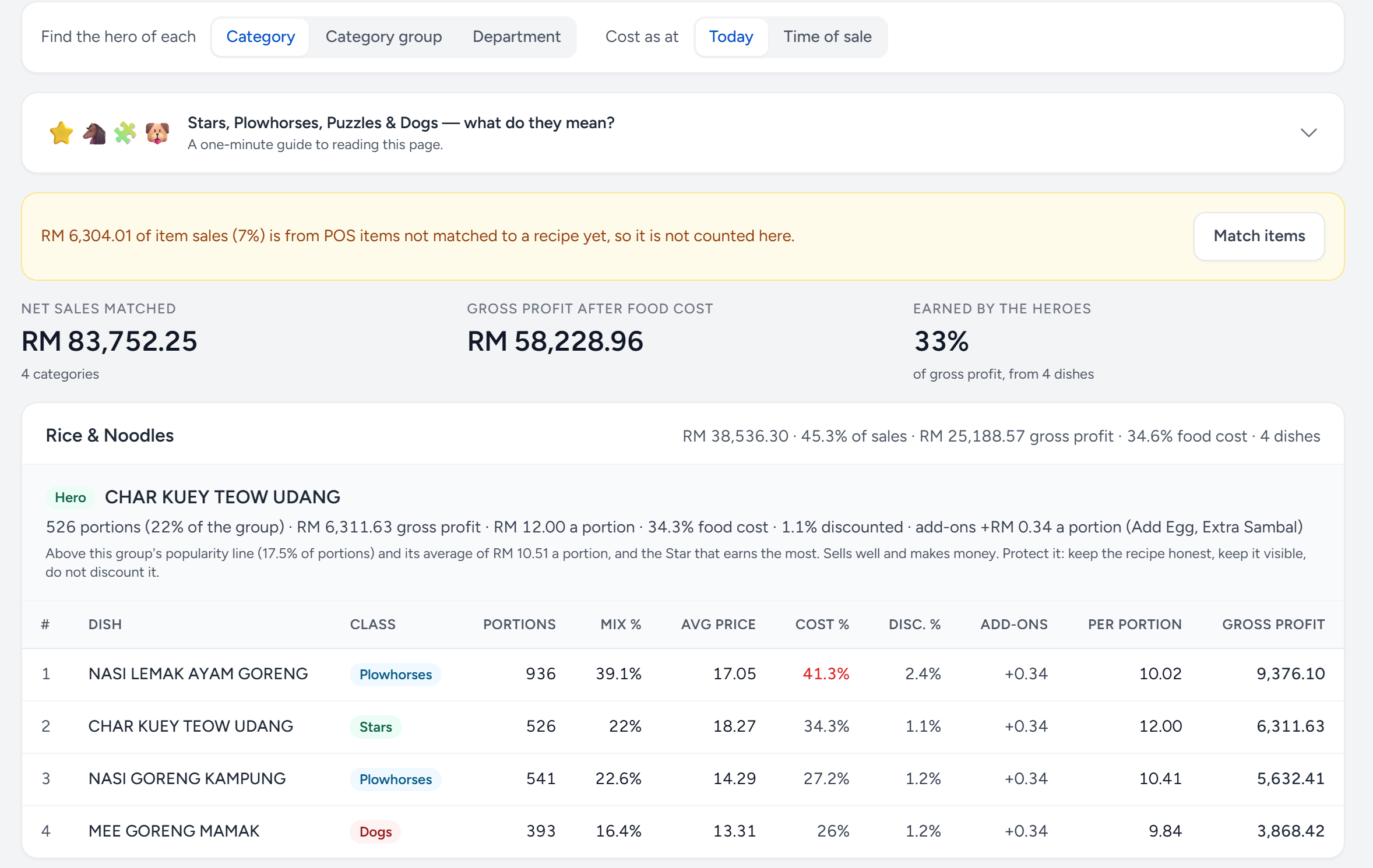
- Find the hero of each — compare dishes within a category, a category group or a department.
- Earned by the heroes — how much of all gross profit comes from the hero dishes alone.
- A group — its sales, share, gross profit and food cost, scored as its own small matrix.
- The Hero — the Star that earns the most in its group. Put it on the front of the menu.
- Cost % in red — over your food cost target: this dish sells, but it should earn more.
6. Check it adds up: Item Sales vs Daily Sales
Item sales and daily sales come from the same till, so they should agree. Reports → Management → Item Sales vs Daily Sales compares the two for each outlet and day. A day Matches within 1% or RM 1, whichever is larger; otherwise it Differs, or one side is missing. By category shows which sales category the difference sits in, which usually points straight at an item that is not linked to a recipe yet.
Common questions
A dish is missing from Menu Engineering.
It needs to be a Dish or Retail item, linked to a recipe that has a cost. Discontinued dishes, packaging, open items and deposits are left out on purpose. The report lists what it left out and why.
It says "Not enough dishes to compare yet".
The matrix needs at least three matched, costed dishes in the period. Match more items on Sales → Item Sales.
A modifier shows a warning on the reports.
It has no Goes with, so its sales and cost are left out of the dish margins. Open it on Sales → Item Sales and pick the categories, departments or dishes it is added to.
Do I need item sales for food cost?
No. Food cost comes from purchases and stock takes. Item sales add the per-dish view: which dishes make the money and which ones cost it.
Still stuck?
Tell us what you were trying to do — a person on our team will reply. If this guide is missing a step or out of date, say so and it gets fixed in the manual, not just in an email.