Sales
POS sync
Pull item-level sales from your point-of-sale system instead of typing them.
2 min read · Last reviewed 22 Oct 2026
If your POS is Zeoniq, a small sync agent on the POS terminal sends the day's sales report to Servora by itself — the same figures as uploading the Zeoniq Excel by hand, without anybody doing it.
Setting it up
- Under Sales → POS Sync, press Download Agent and install it on the POS terminal.
- Add Agent: name it after the till and pick its outlet. Servora shows a pairing code.
- Enter the code on the terminal when the agent asks for it. The agent shows Online once it is paired.
- Run discovery from the agent's menu to see which POS and databases the terminal runs, so you know where its sales can be read from.
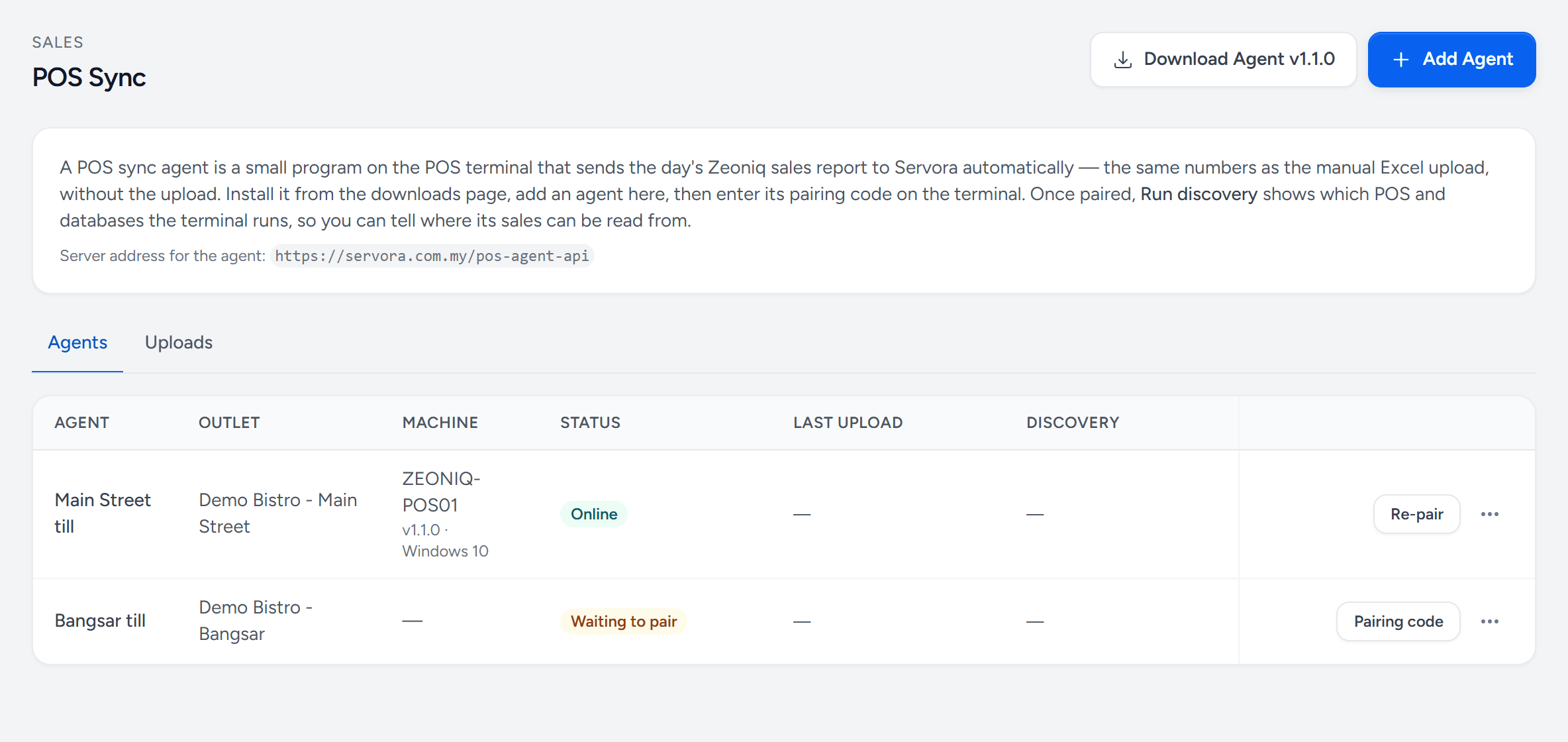
- Download Agent — the installer for the POS terminal.
- Add Agent — one per till. Each gets its own pairing code.
- Uploads — every report the agents sent, and what happened to it.
- Online — paired and checking in. The machine and version are beside it.
- Waiting to pair — added here, not yet entered on the terminal.
- Pairing code — show the code again, to type on the terminal.
- Discovery — what the terminal runs — which POS, which databases.
Mapping departments
Zeoniq reports revenue by its own departments; Servora by your sales categories. The first time a department arrives that Servora does not know, the upload waits as Needs mapping. Press Map departments, say which sales category each one belongs to, and it is applied — and every later day uses the same mapping.
What it sends
- Does — each day's report: revenue by department, pax, transactions, discount, tax, service charge and rounding, by business date and outlet.
- Does not — what each menu item sold (that is the item report, under Item Sales), individual receipts, or payment types.
Checking it worked
The Uploads tab lists every report the agent sent, with its dates and what happened to it:
| Status | Means |
|---|---|
| Applied | Sales records created or replaced for those days. |
| Needs mapping | A department is not mapped yet. Map it and the upload applies. |
| Needs review | Those days already have sales entered. Apply anyway replaces them with the POS figures. |
| Failed | The message says why. Retry once it is fixed. |
If a day looks light in the sales report, look here first.
Still stuck?
Tell us what you were trying to do — a person on our team will reply. If this guide is missing a step or out of date, say so and it gets fixed in the manual, not just in an email.