Getting started
Notifications: the bell, and alerts on your phone
Everything that waits for you lands under the bell. Turn notifications on once per phone or browser and you are told the moment it happens, even with Servora closed.
4 min read · Last reviewed 19 Oct 2026
Servora tells you when something needs you: a purchase order to approve, a petty cash claim, an overtime claim, a decision on your own claim. It tells you in two places.
- The bell is your inbox. Every notification is kept there, always, whatever your settings.
- Your phone or browser gets a pop-up as well, once you turn notifications on for that device. It arrives even when Servora is closed.
The pictures on this page are from a demo company. Tap the numbers on a picture to see what each part does.
The bell
On a computer the bell sits at the bottom of the sidebar. On a phone it is in the top bar. The number on it is how many you have not opened yet.
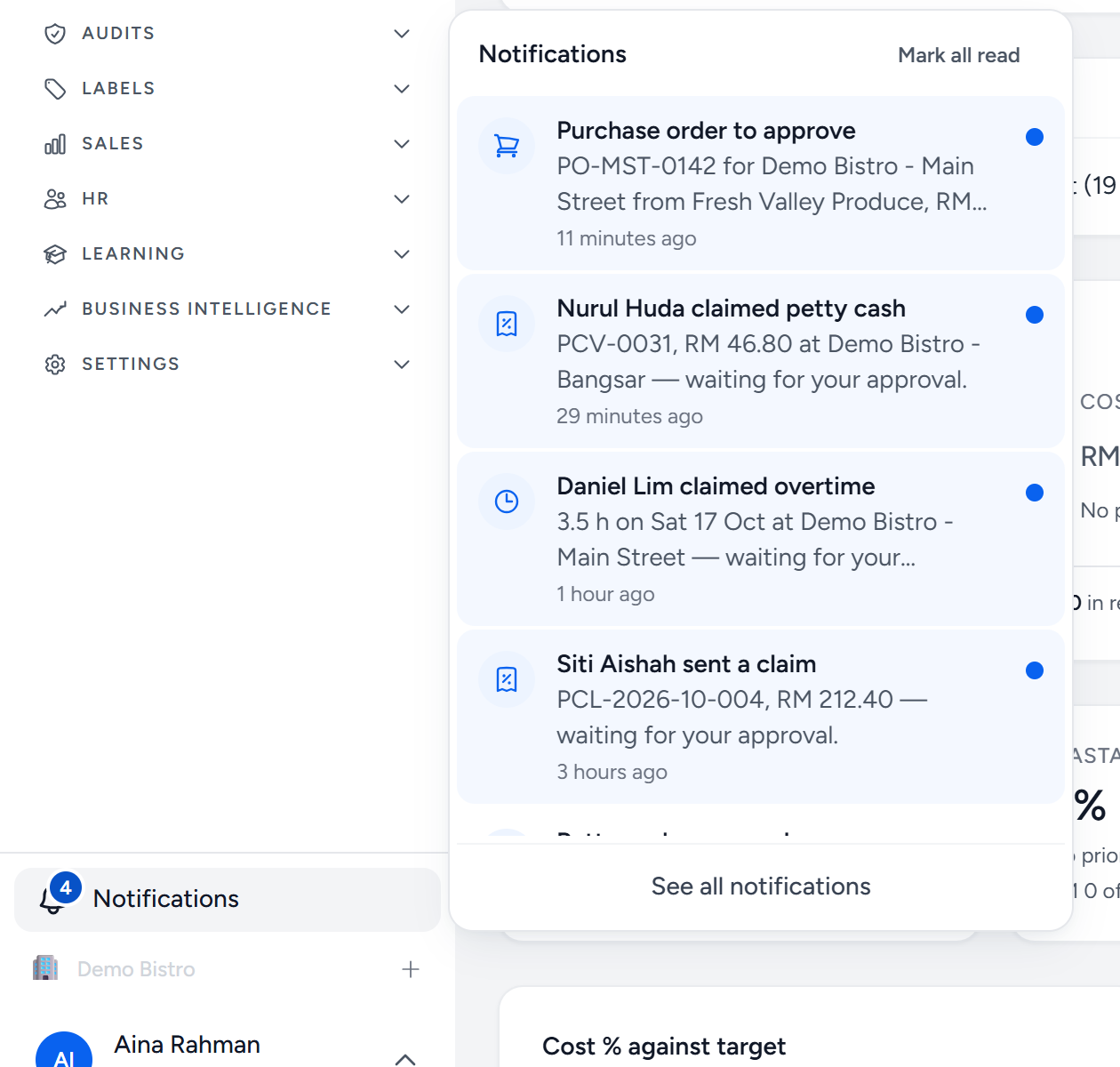
- The bell — the number is what you have not opened yet. It shows 9+ when there are more than nine.
- A notification — what happened, and where. Tap it to go straight to the record; that also marks it read.
- The blue dot — not opened yet. Read ones keep their place in the list without the dot.
- Mark all read — clears the count without opening each one.
- See all notifications — the full inbox, with All and Unread tabs.
The inbox belongs to the company you have open. If you work for two companies, switching company switches the bell too.
Turn notifications on for this device
A browser cannot be switched on from our side: it only accepts notifications after you tap Allow on that device. So it is done once per phone, tablet or computer.
- Tap Turn on on the banner at the top of any page, or go to Profile → Notifications and tap Turn on notifications.
- Your browser asks whether Servora may send notifications. Choose Allow.
- The button now reads On for this device. Do the same on your other devices.
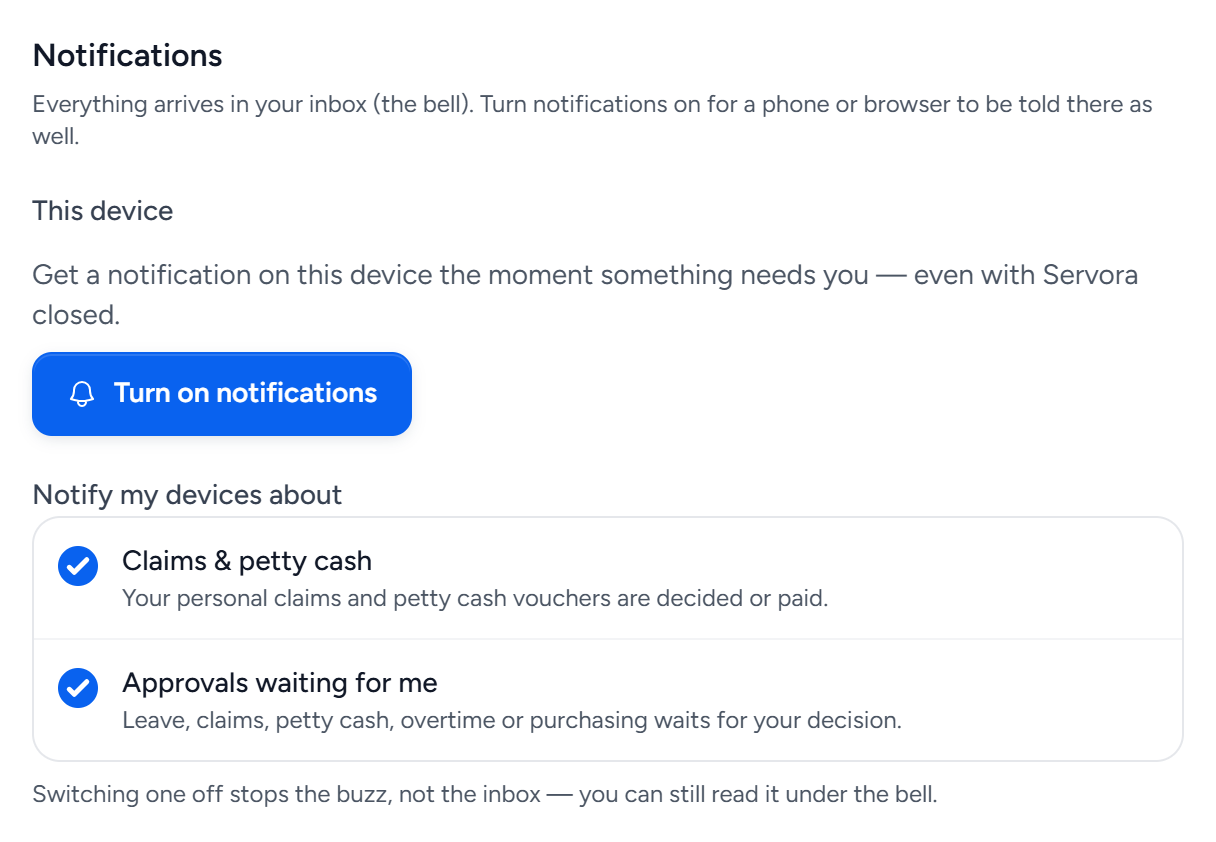
- Turn on notifications — switches on this one device. Once it is on, the same place has Turn off here.
- Claims & petty cash — a claim or petty cash voucher you raised is approved, returned, rejected or paid.
- Approvals waiting for me — leave, claims, petty cash, overtime or a purchase request or order is waiting for your decision.
- Muting a topic stops the pop-up only. The notification still arrives under the bell.
Right after you sign in, Servora also asks once per device with a Turn on notifications box. Skip is fine; you will not be asked again on that device, and the banner and Profile still have the button. Not now on the banner hides it on that device for a week.
On an iPhone
iPhones only deliver notifications to apps on the Home Screen, not to a Safari tab, and need iOS 16.4 or later. So first:
- Open Servora in Safari and tap Share at the bottom.
- Choose Add to Home Screen, then Add.
- Open Servora from the new icon, and turn notifications on from there.
Android phones, and Chrome, Edge and Firefox on a computer, need nothing extra.
What you are told about
| Who | You are told when |
|---|---|
| Approvers in the back office | A purchase request or order, petty cash voucher, personal claim, overtime claim or leave application is waiting for you |
| Anyone who raised a claim | Your petty cash voucher or personal claim is approved, returned, rejected or paid |
| Staff on the Staff Portal | Leave or time off decided, overtime decided, a flagged clock-in reviewed, a claim decided or paid, a payslip ready, a new roster approved |
You are never told about something you did yourself. Staff turn notifications on from the Me tab of the Staff Portal in the same way, and their bell sits next to Sign out.
Who has it switched on?
Managers can see who still needs to turn notifications on under HR → People → Notification Coverage. It shows how many people are switched on, which devices they use and which topics they have muted, so you can chase the ones who have not.
Common questions
I tapped Block by mistake.
The browser now refuses Servora, and only you can undo that: open the browser's site settings for Servora, set Notifications to Allow, then come back to Profile → Notifications.
I turned it on but nothing arrives on my phone.
Check that the topic is ticked under Notify my devices about, that your phone is not in Do Not Disturb, and on an iPhone that you opened Servora from the Home Screen icon, not from Safari. The bell still has everything in the meantime.
I have a new phone.
Each device is switched on separately. Sign in on the new phone and turn notifications on there.
Still stuck?
Tell us what you were trying to do — a person on our team will reply. If this guide is missing a step or out of date, say so and it gets fixed in the manual, not just in an email.