Getting started
How Servora is laid out
The sidebar, the workspaces, and why every screen has the same three parts.
2 min read · Last reviewed 22 Oct 2026
Everything is reached from the sidebar on the left. It is grouped by the job you are doing, not by the database table underneath.
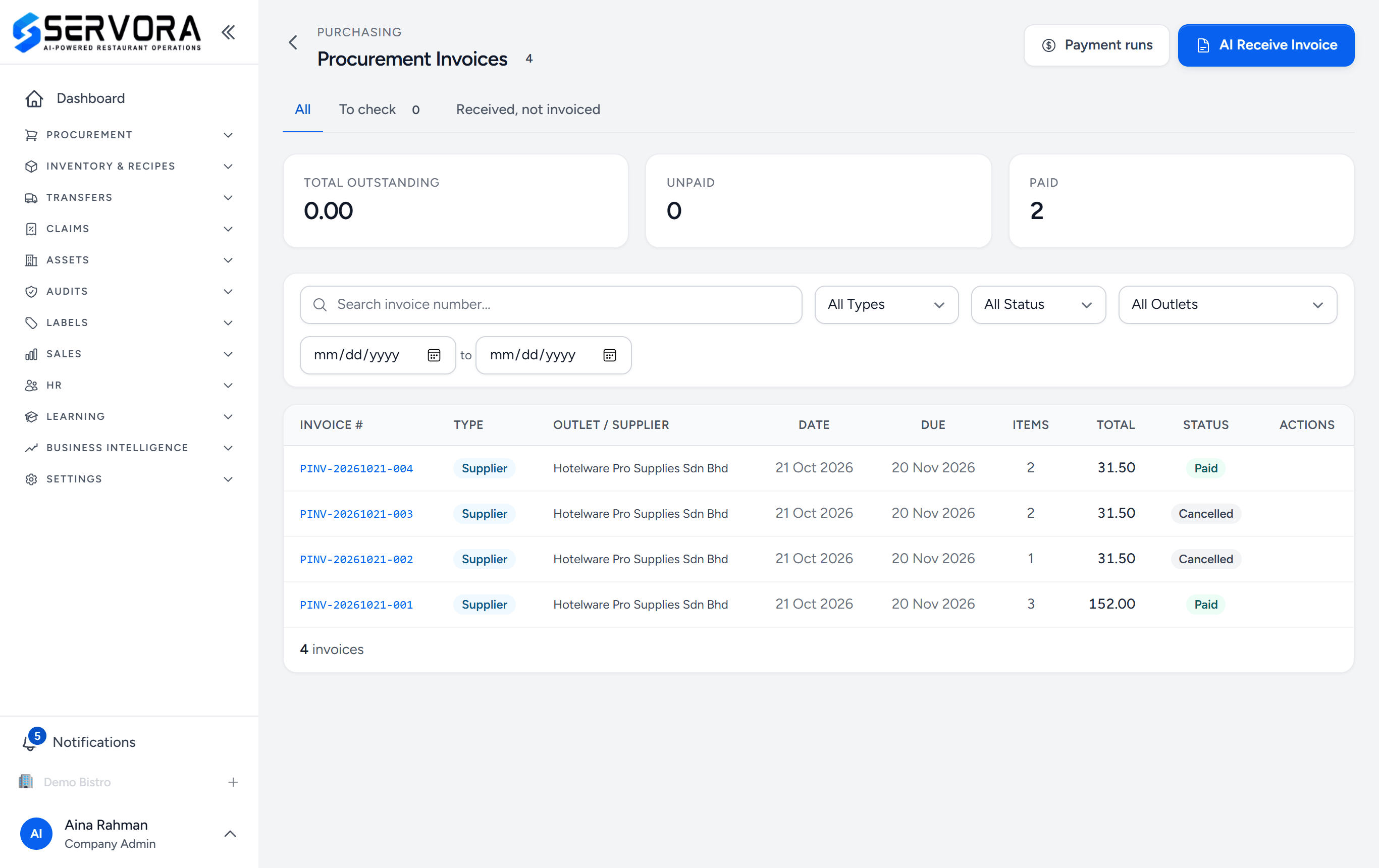
- A sidebar group — one per job: Procurement, Inventory & Recipes, Transfers, Claims and so on. Click to open it.
- Collapse — shrinks the sidebar to a rail of icons when you need the room.
- Page header — the screen's name, and how many records it holds.
- Main action — the one thing this screen is for, always top right.
- Filter strip — search, type, status, outlet and dates.
- The table — one row per record. Click the number to open it; row actions sit on the right.
- Notifications — your inbox: approvals waiting for you and decisions on what you sent.
- Your name — your profile, the switch to the Central Kitchen workspace if you have one, and sign out.
You only see what you can use
A group only appears if your role can open at least one screen inside it. If a colleague describes a menu item you cannot find, you almost certainly do not have that permission rather than a different version of the product. See Roles and permissions.
Every screen has the same three parts
- A page header with the screen's name and its main action on the right.
- A filter strip — search, date range, outlet, status.
- A table or list, with the row actions on the right of each row.
Once you can read one screen you can read all of them. Where a screen breaks the pattern there is a reason, and the guide for that screen says what it is.
Two workspaces
Most people only ever see the outlet workspace — the one described above. If your business runs a central kitchen, users attached to it also get the Central Kitchen workspace, which is purple and answers a different question: what are we producing today, rather than what are we selling today. Switch between them from the menu under your name, at the bottom of the sidebar. See The kitchen workspace.
Outlets
If your company has more than one outlet, each screen has its own Outlet filter in the filter strip, and every form asks which outlet it is for. You only ever see the outlets you have been given. Choosing another outlet does not change what you are allowed to do — only which outlet's data you are doing it to. See Working across outlets.
Still stuck?
Tell us what you were trying to do — a person on our team will reply. If this guide is missing a step or out of date, say so and it gets fixed in the manual, not just in an email.