Getting started
Your first week
The order to set things up in, so nothing you enter has to be entered twice.
2 min read · Last reviewed 22 Oct 2026
Servora builds on itself: recipes need ingredients, ingredients need suppliers, and reports need all of it. Doing it in this order means nothing gets entered twice.
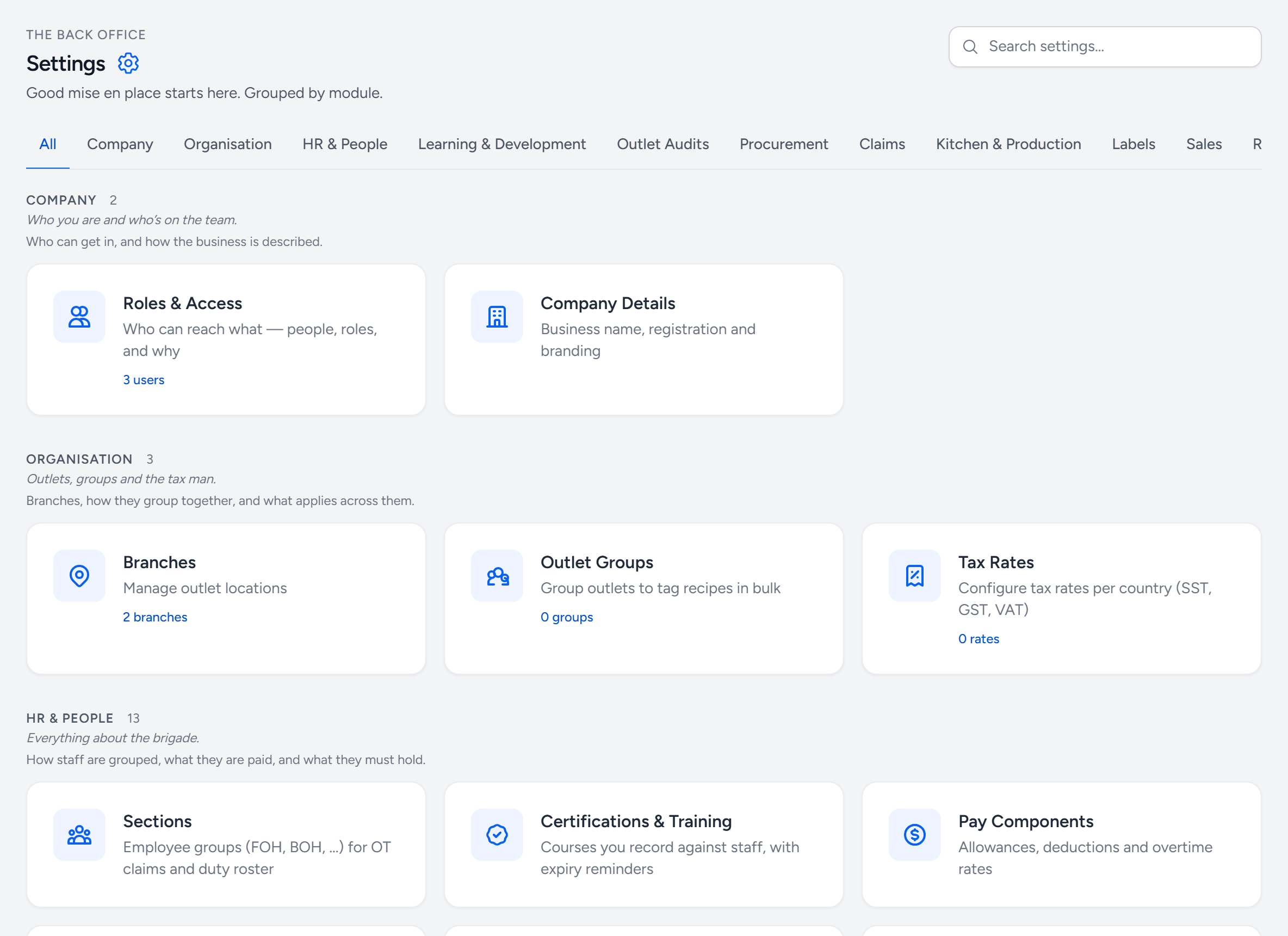
- Search settings — type what you are looking for — "approver", "tax" — instead of hunting through the tabs.
- Module tabs — show only one module's settings. All is everything.
- Company Details — day 1: legal name, registration number, address and logo.
- Roles & Access — day 1: your users, and the role each one has.
- Branches — day 1: one row per outlet, and the central kitchen if you have one.
Day 1 — the frame
- Company details (Settings → Company Details) — legal name, registration number, address, currency, tax type. These print on every document you send a supplier.
- Outlets (Settings → Branches) — one row per physical location. Add the central kitchen too, if you have one.
- Users (Settings → Roles & Access) — invite the managers first. Assign each one a role; do not give everybody Company Admin.
Day 2 — what you buy
- Suppliers (Procurement → Suppliers) — name, contact, email. The email matters: purchase orders can be sent from Servora.
- Product categories (Settings → Product Categories) — Produce, Dairy, Dry goods, and so on. Keep it to a dozen; categories are how every cost report groups.
- Ingredients (Market List) — this is the big one. Each needs a purchase unit, a pack size, a price and a yield. See The Market List.
You do not have to type ingredients in one at a time. Upload a supplier price list or invoice under Review Documents and Servora reads it, matches what it can, and asks you about the rest.
Day 3–4 — what you cook
- Prep items first — sambal, stocks, sauces, marinades. They are recipes, and other recipes use them.
- Recipes — your menu. Each line is an ingredient or a prep item with a quantity.
- Selling prices — set them and Servora shows you the food cost percentage against your target.
Day 5 — the daily habits
Everything above is set up once. These are what the team does every day, and the system is only as good as they are:
- Receive deliveries as they arrive, not at the end of the week.
- Record wastage when it happens.
- Enter or sync sales daily.
- Print labels at prep time, not at service.
Week 2 onwards
Do a full stock take. Until you have one, your closing stock is an estimate and so is your food cost. After that, look at Reports and AI Analysis weekly — the second one reads the first and writes what changed.
Still stuck?
Tell us what you were trying to do — a person on our team will reply. If this guide is missing a step or out of date, say so and it gets fixed in the manual, not just in an email.