Labels
Print sets
One button for a whole station — every label the grill needs at open, in one press.
2 min read · Last reviewed 22 Oct 2026
At open, a station needs the same fifteen labels it needed yesterday. A print set is that list, saved.
Building one
- Labels → Print Sets → New set.
- Name it after the physical place: Chiller 1, Sandwich Station, Grill. Staff pick by where they are standing.
- Add a line per item, with its storage state and how many labels.
Sets belong to an outlet — each branch has its own, because each branch's chiller holds different things.
Printing a set
Open the set, confirm who is preparing, untick anything you have not made, and Print selected. The review step matters: a set is a default, not a promise. If you are not making sambal today, uncheck it rather than printing a label for something that does not exist.
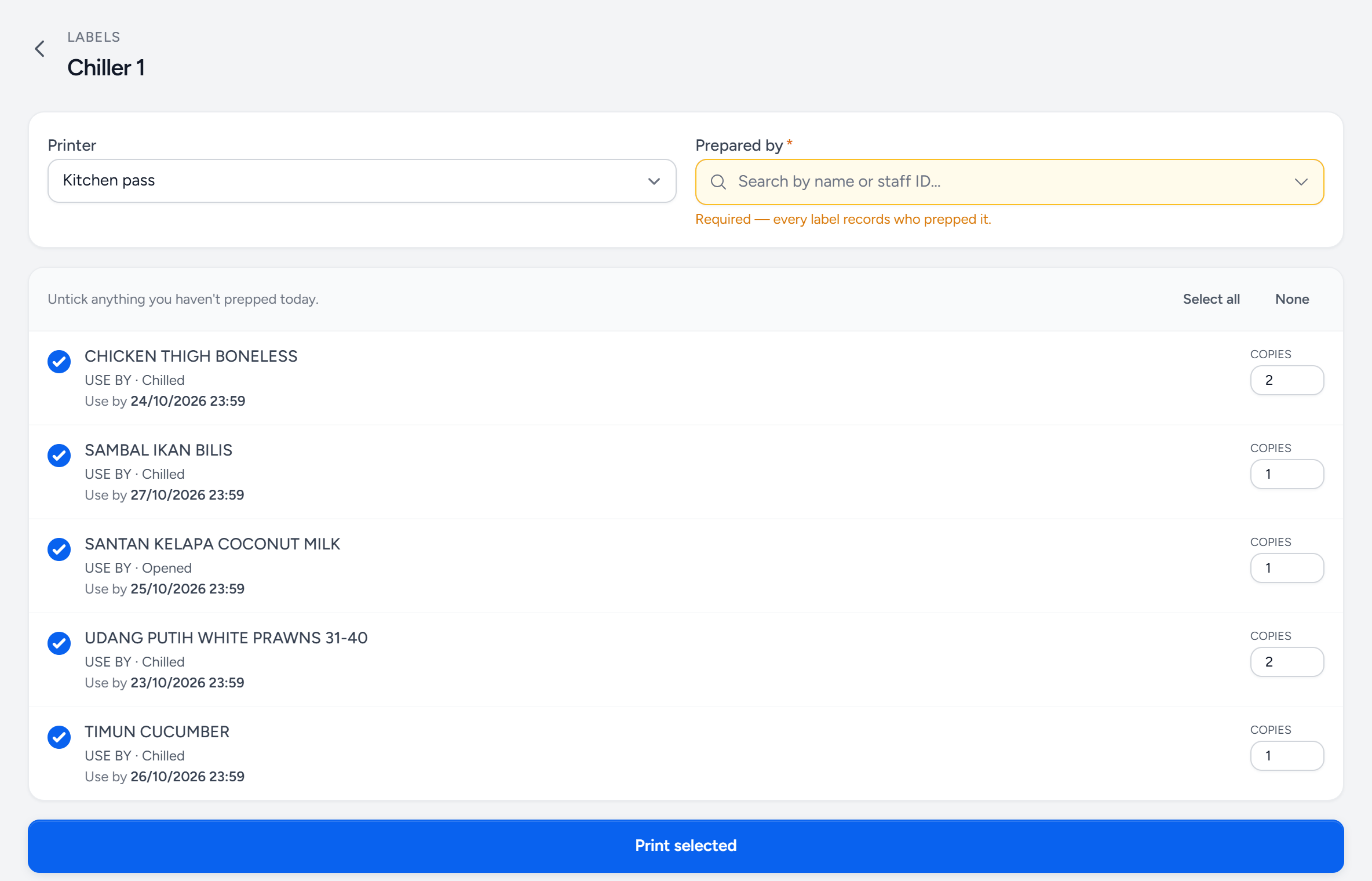
- The set — named after where it lives.
- Printer — the outlet's label printer.
- Prepared by — required before anything prints.
- Select all / None — start from everything, or from nothing.
- Tick — untick anything you have not prepped today.
- Each line — its label type, storage state and its own use-by date.
- Copies — change it for today if you made more or less.
- Print selected — one run, logged against the set.
Each line carries its own shelf life
A set can mix a 12-hour item and a 30-day item. Each line resolves its own rule, so every label in the batch gets its own correct use-by date. The dates on one print run will not match, and that is right.
Why there is no expiry meter here
Elsewhere in the labels module a meter shows how much life an item has left. There is none in the print queue, because everything in it was made thirty seconds ago and is 100% fresh by definition. A row of full meters teaches nothing. The meter belongs on Expiring.
Still stuck?
Tell us what you were trying to do — a person on our team will reply. If this guide is missing a step or out of date, say so and it gets fixed in the manual, not just in an email.