Labels
What the label system does
Prints a food-safety label whose use-by date is calculated, not typed.
2 min read · Last reviewed 22 Oct 2026
Every prepped item in a professional kitchen needs a label saying what it is, when it was made and when it must be thrown away. Handwriting them is slow, illegible by day three, and the date is whatever the person with the marker believed at the time.
Servora prints them, and — this is the part that matters — calculates the use-by date from a rule you set once, rather than asking the person at the bench.
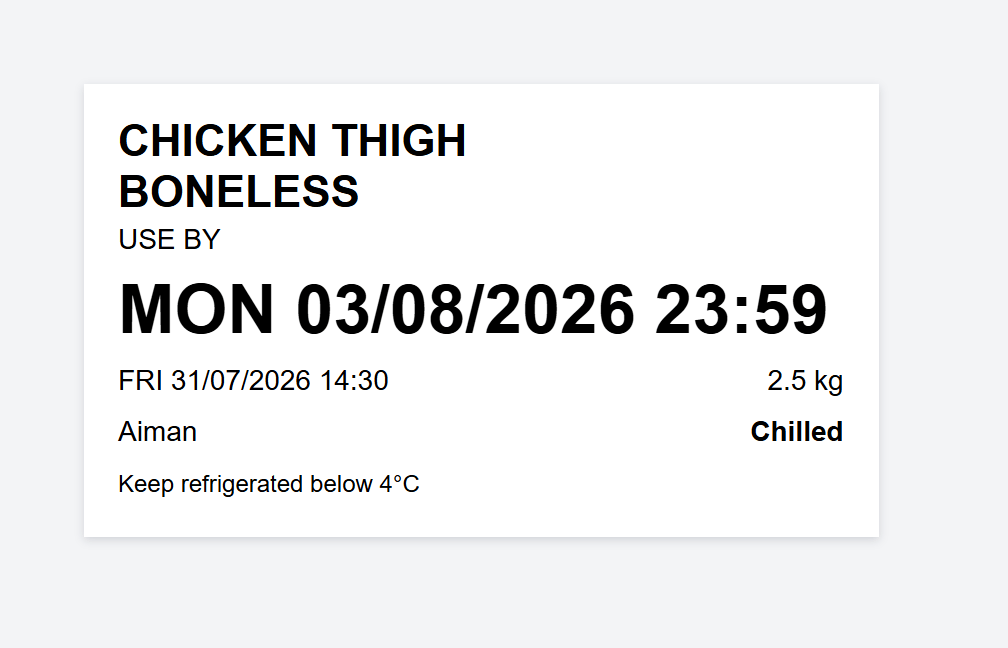
- The item — large enough to read across a chiller.
- Label type — use-by, defrosting, opened, received and so on — each has its own template.
- Use by — worked out from the shelf-life rule for this item in this storage state. Nobody types it.
- Prepared — the date and time it was printed.
- Quantity — how much is in the container, when it is given.
- Prepared by — always a name — a label nobody signed does not do its job.
- Storage — chilled, frozen, ambient, thawing, opened or cooked.
- Instruction — how to keep it, from the item.
What is on a label
- The item name, large enough to read across a chiller.
- Prepared — the date and time it was printed.
- Use by — calculated from the shelf-life rule for that item in that storage state.
- Who prepared it, and which outlet or station.
- Optionally a QR code, allergen text, or your own fields — templates are configurable.
The four screens
| Screen | For |
|---|---|
| Print Labels | Printing, one item at a time. |
| Print Sets | Printing a whole station's labels in one go. |
| Expiring | What is running out of life, right now. |
| Print Log | Everything printed, with who and when — your audit trail. |
Built for wet hands
The staff-facing label app is a separate, simplified screen designed for a tablet at the bench: big targets, no small text, sign in with a PIN rather than a password. It is used with gloves on, and that constraint shaped the whole design.
Still stuck?
Tell us what you were trying to do — a person on our team will reply. If this guide is missing a step or out of date, say so and it gets fixed in the manual, not just in an email.