People & payroll
The duty roster
Plan the week, publish it, and let the team read it on their phones.
2 min read · Last reviewed 22 Oct 2026
The roster is what you plan. It is deliberately a separate record from attendance, which is what happened — see Attendance.
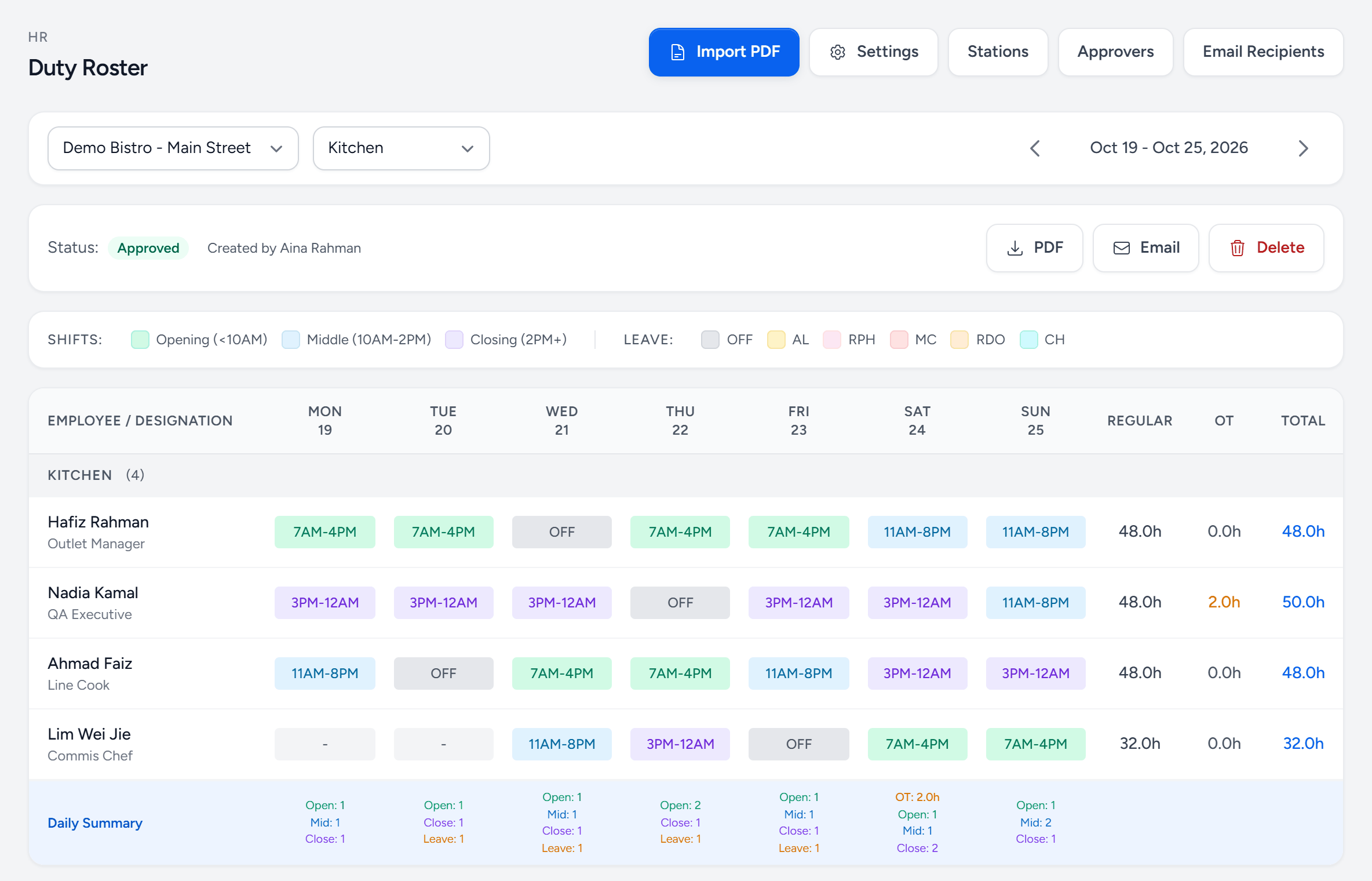
- Import PDF — bring in a roster made elsewhere.
- Stations — grill, pass, front — so the roster says where, not just who.
- Approvers — who approves each outlet's rosters.
- Section — each section has its own roster — kitchen and service separately.
- The week — step back and forward a week at a time.
- Status — draft, submitted, approved or rejected — and who did it.
- A rest day — OFF. Approved leave shows here too.
- OT — planned overtime. It does not become a claim unless you ask it to.
- Daily Summary — how many open, mid and close each day — gaps show at a glance.
Shifts first
Under HR → HR Settings → Shifts, define the shifts you actually run — Morning 07:00–16:00, Evening 15:00–00:00, Split. Each carries its hours and any break. Rostering then becomes picking a shift rather than typing times.
Building a week
- HR → Duty Roster. Pick the outlet, the section and the week.
- Drag a shift onto each person on each day. Mark a rest day OFF.
- Approved leave already appears — you cannot accidentally roster someone who is away.
- Copy last week and adjust, rather than starting from empty.
- Submit for Approval. Once a roster approver approves it, the team can see it; before that it is a draft.
Stations
A shift can carry a station — grill, pass, front. It turns a roster into something the kitchen can actually work from, rather than a list of who is in the building.
Amendments
Change an approved week — only people whose role can amend approved rosters can — and the change is recorded as an amendment, not an overwrite. That matters when somebody says they were never told, and it matters again at payroll.
Getting it out
Export the week as a PDF for the noticeboard, or have it emailed to a list of recipients when it is published. Staff see it in the Staff Portal under Roster; anyone without a phone reads the printed one.
Still stuck?
Tell us what you were trying to do — a person on our team will reply. If this guide is missing a step or out of date, say so and it gets fixed in the manual, not just in an email.