People & payroll
Personal claims: mileage, transport, meals, medical and more
Staff claim back what they spent of their own — mileage, parking, tolls, e-hailing and flights, meals, medical bills — one claim per month from the Staff Portal, paid by Finance.
6 min read · Last reviewed 22 Oct 2026
Staff often pay for company business out of their own pocket: the drive to a supplier, parking at HQ, a Grab to the airport, lunch with a supplier, a clinic visit. They add each one in the Staff Portal as it happens and send one claim for the month. Finance pays it.
Petty cash is different: that is money spent for the outlet and paid back from its cash box — see Petty cash. Both sit under the same Claims tile in the Staff Portal, so staff do not need to know which is which.
Switching it on
Under Claims → Claims Settings → Personal Claims, choose what your staff may claim. Nothing appears in the Staff Portal until at least one is on — the Personal Claims page says so if staff cannot claim yet.
- Mileage, parking and toll switch on when you add a mileage rate — one per kind of vehicle, for example Car RM 0.80 and Motorcycle RM 0.50 per km. A new rate applies to trips added from then on; trips already claimed keep the rate they were added at.
- Transport (e-hailing, taxi, flight, train, bus), Staff meal, Medical and Others each have their own tick under What staff can claim. They work with or without a mileage rate. All start off.
For staff: add as you go
In the Staff Portal, tap Claims. You see only what your company has switched on:
- Trip — pick the vehicle and the date, then where you started and where you went: your outlet, the company's places, places you saved, or Another address…. + Add a stop for several drops; tick Came back to the start for a return trip. Say what it was for, tap Work out the distance, then Add trip. The amount is the kilometres times your vehicle's rate.
- Drove a different distance? A closed road, a detour — tick I drove a different distance, type the kilometres and say why. Your approver sees both figures.
- Receipt — photograph it (or choose a photo or PDF) and pick what it is: parking, toll, transport, staff meal, medical or other. Servora reads the amount and date; check them before adding. Say what it was — for Other you must, because that is all your approver has to go on.
- e-wallet statement (Touch 'n Go, Setel) — upload the statement PDF, or a screenshot of the transaction history, then tick the tolls and parking that were for work. Fuel cannot be claimed on its own: your mileage rate already pays for it. Reloads, top-ups and other charges are left out. A charge you have already claimed — the same statement twice, or two months overlapping — is skipped and you are told.
- Locked statement PDFs — Touch 'n Go and Setel lock their statements with a password (it is in the email the statement came with). Drop the PDF in as usual; Servora asks for the password once, opens it and reads it. Leave Save it as my password for ticked and next month's statement opens by itself. You can also save it ahead: open Statement passwords under the upload box, pick Touch 'n Go or Setel, type it and tap Save. Saved passwords are kept encrypted, used only on statements you upload, never shown back — Forget removes one, and saving again replaces it.
- My places — save places you go often, so a trip is two taps.
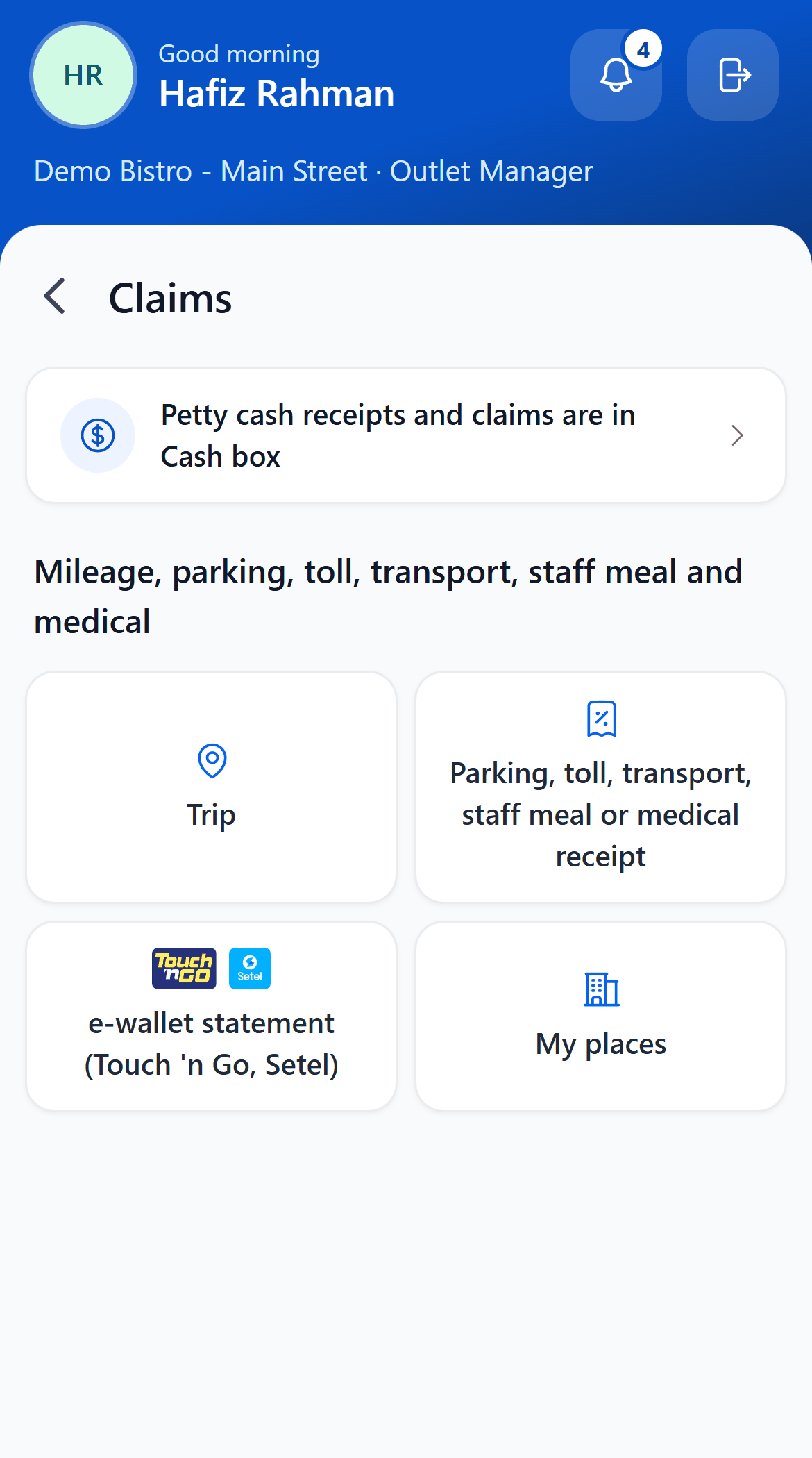
- Cash box — petty cash is separate — holders only.
- Trip — mileage: where you started and where you went.
- A receipt — parking, toll, transport, staff meal or medical — a photo is read for you.
- E-wallet statement — Touch 'n Go or Setel: pick the rows that were for work.
- My places — the addresses you travel between, saved once.
For staff: send one claim per month
What you have added waits under each month's not sent yet card. When the month is done, tap Send [month] claim. One claim always holds one month; another month's items stay where they are until you send that month.
Under Sent claims you can open the Claim form (a PDF) and Withdraw a claim until somebody acts on it — its items come back to your list to change and send again.
How it is approved
Your company chooses, on the Approvers tab of the same settings page:
- On paper (the default). A sent claim goes straight to Finance. Print the claim form; your manager signs the Approved By box; Finance pays once it is signed.
- In Servora — tick Approve claims in Servora. A claim then waits for an approver first, in Claims → Personal Claims → To approve or on their phone under Team → Approvals. They see every trip with its route and kilometres, every receipt, and what is worth a second look — a distance typed in or changed, a receipt that looks already claimed. Approve, Return to fix (the items go back to the claimant) or Reject; returning and rejecting need a note. Nobody approves their own claim.
For Finance: a month at a time
- Open Claims → Personal Claims → To pay. The Month filter opens on the newest month with claims waiting, and every month in it shows how many it holds, so filtering by one month never hides another's waiting claims.
- The line above the list gives the month's total. Download [month] (Excel) lists every claim with its totals by kind and the claimant's bank, account number and account name — for paying. Only people with Finance: pay can download it.
- Open a claim. The PDF has the bank details, every trip with its route, kilometres and rate, every receipt line, a total for each kind, a declaration, signature boxes and the receipts at the back. On the paper route, check it is signed.
- Something on it should not be paid? A personal trip, a receipt that does not qualify — tap the bin beside that item, say why and tap Remove … and recalculate. The total, the totals by kind, the kilometres and the PDF are all worked out again. The item stays on the claim under Removed by Finance — not paid, struck through, with your reason — the claimant sees it in the Staff Portal, and it cannot be claimed again. Put back undoes it until the claim is paid. The last item cannot be removed: reject the claim instead.
- Pay the amount shown, enter the payment reference and tap Finalise and mark paid. A finalised claim cannot be changed.
- Not paying it? Under Not paying it?, Return to fix or Reject with a note — this is how a "no" on the paper form is recorded.
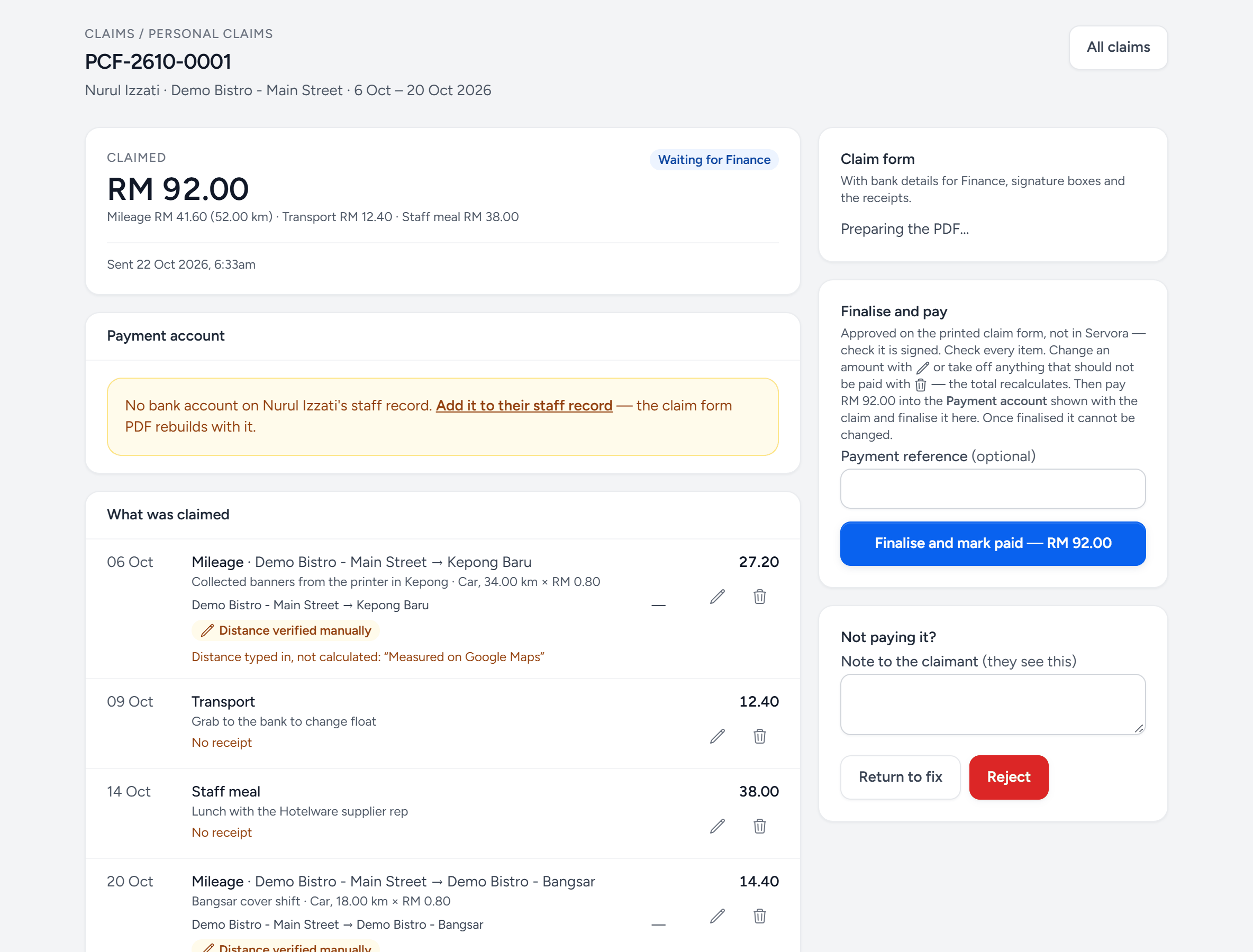
- Claimed — the total, split into mileage, transport, meals and the rest.
- Waiting for Finance — approved, or sent straight to Finance where approval is off.
- Payment account — where it will be paid. Missing here means it cannot be.
- A trip — the route, the kilometres and how they were measured.
- No receipt — flagged on every line without one.
- Payment reference — your bank's reference for the transfer.
- Finalise and mark paid — after the money has gone.
- Return to fix — with a note the claimant sees. Reject ends it.
Distances
Distances are driving distances from Google Maps, worked out leg by leg; a trip done once is remembered, so the same run next week is instant. If distances cannot be worked out, staff type the kilometres with a reason and the approver sees it flagged as typed in. If every trip says the distance could not be worked out, the map service is not set up for your account yet — tell Servora support.
Places and roles
- Places (Personal Claim Settings) — places everyone can pick: HQ, the supplier's warehouse, the bank. Outlets are there already.
- Roles (Settings → Roles & Access), under HR — Personal Claims: View, Approve and Finance: pay. Staff need none of them to claim. Personal claims are part of the HR plan.
Still stuck?
Tell us what you were trying to do — a person on our team will reply. If this guide is missing a step or out of date, say so and it gets fixed in the manual, not just in an email.