People & payroll
Sign in with Face ID or fingerprint
Set up a passkey once, then sign in to the Staff Portal with one tap — no outlet, no name, no PIN. Works in any browser on the phone.
4 min read · Last reviewed 22 Oct 2026
Staff can sign in to the Staff Portal with their face or fingerprint instead of picking their outlet, finding their name and typing a PIN. It is set up once per person, takes a few seconds, and from then on signing in is one tap.
Behind it is a passkey — the same thing banking and shopping apps use. It is kept in the phone's own keychain. Your face or fingerprint never leaves the phone: the phone checks it, and Servora only ever receives a signed "yes, it's them".
Why use it
- Quicker. One tap at the start of every shift, instead of outlet, name and six digits.
- Works in any browser on the phone. Safari and the Staff Portal on the home screen, Chrome and Samsung Internet — all use the same passkey. That matters if your company locks each person's Staff Portal to one phone: a PIN sign-in in a different browser can be refused as "another phone", a Face ID sign-in is not.
- Harder to borrow. A colleague who has seen your PIN cannot use your face.
Set it up
- Sign in to the Staff Portal as usual, with your PIN or an emailed code.
- On Home, a card says Sign in with Face ID next time. Tap Set up.
- Your phone asks for Face ID, your fingerprint, or your phone's passcode. Confirm it.
- The card says Done. That's it.
Tapped Not now, or the card has gone? Tap Me, scroll to Security, and use Set up Face ID or fingerprint under Face ID & fingerprint.
If neither shows, this phone or browser cannot make a passkey — usually because the phone has no screen lock. Turn on a passcode, Face ID or fingerprint in the phone's settings and try again, or keep using your PIN.
Sign in with it
Open the Staff Portal and tap Sign in with Face ID or fingerprint at the top of the sign-in screen. Look at the phone or touch the sensor, and you are in.
In a browser where you have not used it before, the same option is a smaller link: Have a passkey? Sign in with Face ID or fingerprint. It works the same way.
Your PIN and emailed codes keep working. Face ID is an extra way in, not a replacement.
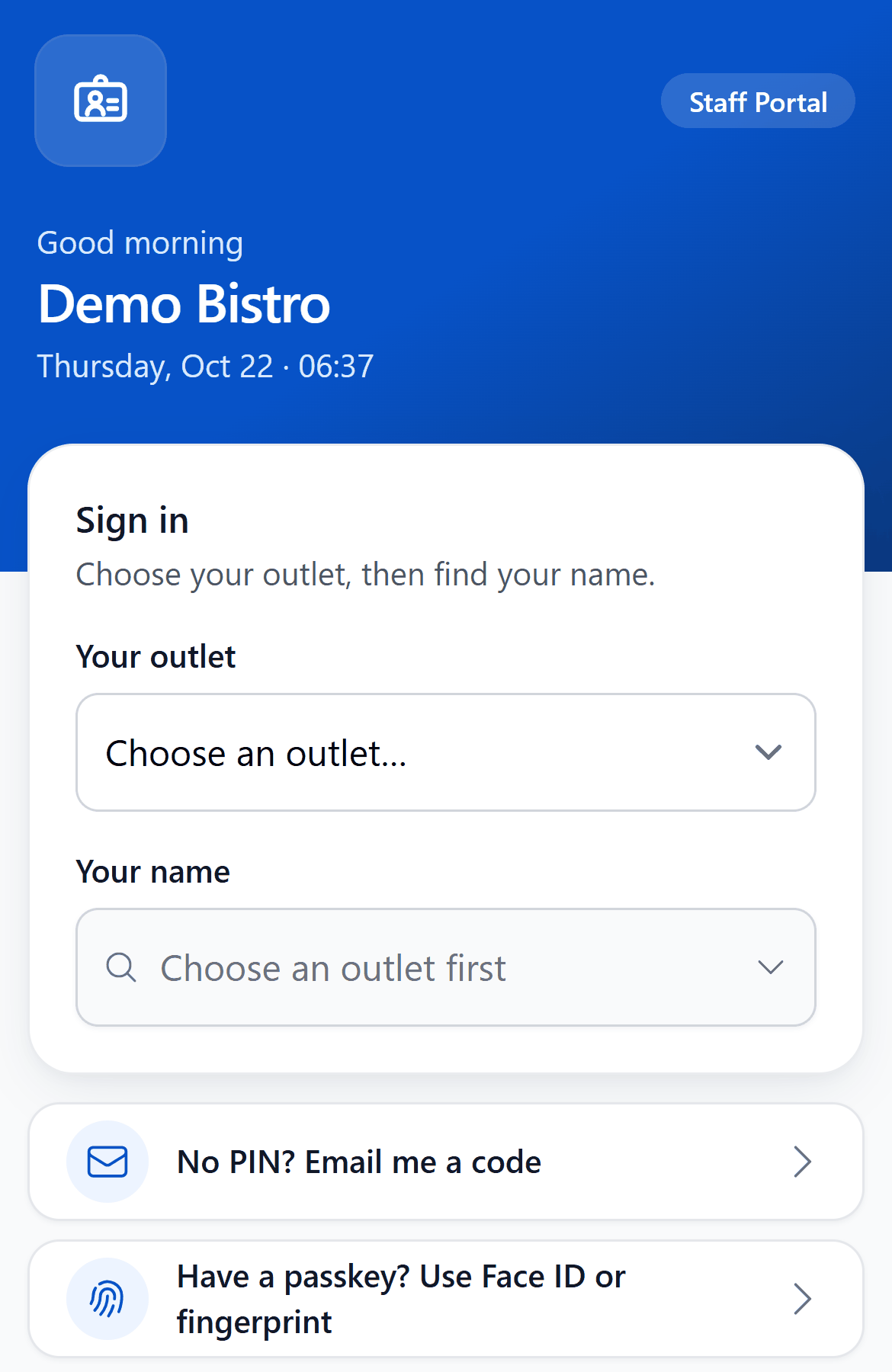
- Your outlet — pick it first.
- Your name — then find yourself and enter your PIN.
- No PIN? — a code by email instead.
- Use Face ID or fingerprint — once set up, this is all you tap — no outlet, name or PIN.
A new phone
- iPhone — if your passwords sync through iCloud (Settings → your name → iCloud → Passwords), your passkey moves to a new iPhone signed in to the same Apple account.
- Android — passkeys saved in Google Password Manager move to a new phone signed in to the same Google account.
- Otherwise, sign in once with your PIN and set it up again from Me → Security (Add this phone).
Remove it
Me → Security → Face ID & fingerprint lists each passkey with the phone it was made on, when it was added and when it was last used. Remove stops it signing you in, and signs out anywhere it was used.
Lost your phone? Tell your manager — they can remove it for you.
If it doesn't work
- Nothing happens, or the phone's sheet closes — you cancelled it, or it timed out. Tap the button again.
- "That passkey didn't work here" — it was removed, it was made for a different company's Staff Portal, or your PIN was revoked. Sign in with your PIN and set it up again if you still have access.
- "This phone already has your passkey" — it's set up already; use the sign-in button.
- Locked to another phone — on the locked page, tap Use this phone with Face ID to move your Staff Portal to the phone you are holding.
For managers
- HR → Staff PINs shows Face ID on under each person who has set it up, and how many devices. Remove takes it away — for a lost phone, or one set up where it shouldn't have been. They sign in with their PIN or an emailed code afterwards.
- Revoke removes their passkeys too, so revoked staff cannot get back in with Face ID.
- A passkey can only be set up from inside the Staff Portal, by someone already signed in — so when the one-phone lock is on, it can only end up on a phone the lock already allowed. That is why a Face ID sign-in moves the lock without the weekly limit or an email.
- Nobody's face or fingerprint is stored by Servora. There is nothing to enrol and nothing for HR to manage beyond the list above.
Still stuck?
Tell us what you were trying to do — a person on our team will reply. If this guide is missing a step or out of date, say so and it gets fixed in the manual, not just in an email.