People & payroll
Hold a salary
Mark HOLD SALARY with a reason on the attendance record, and that month's payroll run keeps the person on the run but does not pay them until it is released.
4 min read · Last reviewed 22 Oct 2026
Sometimes a person must not be paid this month — yet. They have stopped turning up without notice, there is a cash shortage being looked into, a resignation is being handled, or company property has not come back. Hold salary lets HR say so once, with a reason, and the payroll run does the rest: the person stays on the run with every figure worked out, but nothing is paid to them until somebody releases it.
Hold a salary
- Open HR → Attendance Record and pick the month you are paying.
- Point at the person's name and click Hold salary (on a tablet it is always shown under the name).
- Write the reason — what happened, and what would release it. It is required, and only HR sees it.
- Click Hold salary.
Their row turns red with a HOLD SALARY label and the reason under their name, and a line above the grid lists everybody on hold for that month — so a hold on a long roster is not missed by whoever runs payroll.
You can also do it from the run itself: in HR → Payroll, open the month's run, point at the person and click Hold salary. It is the same hold — it shows on the attendance record too.
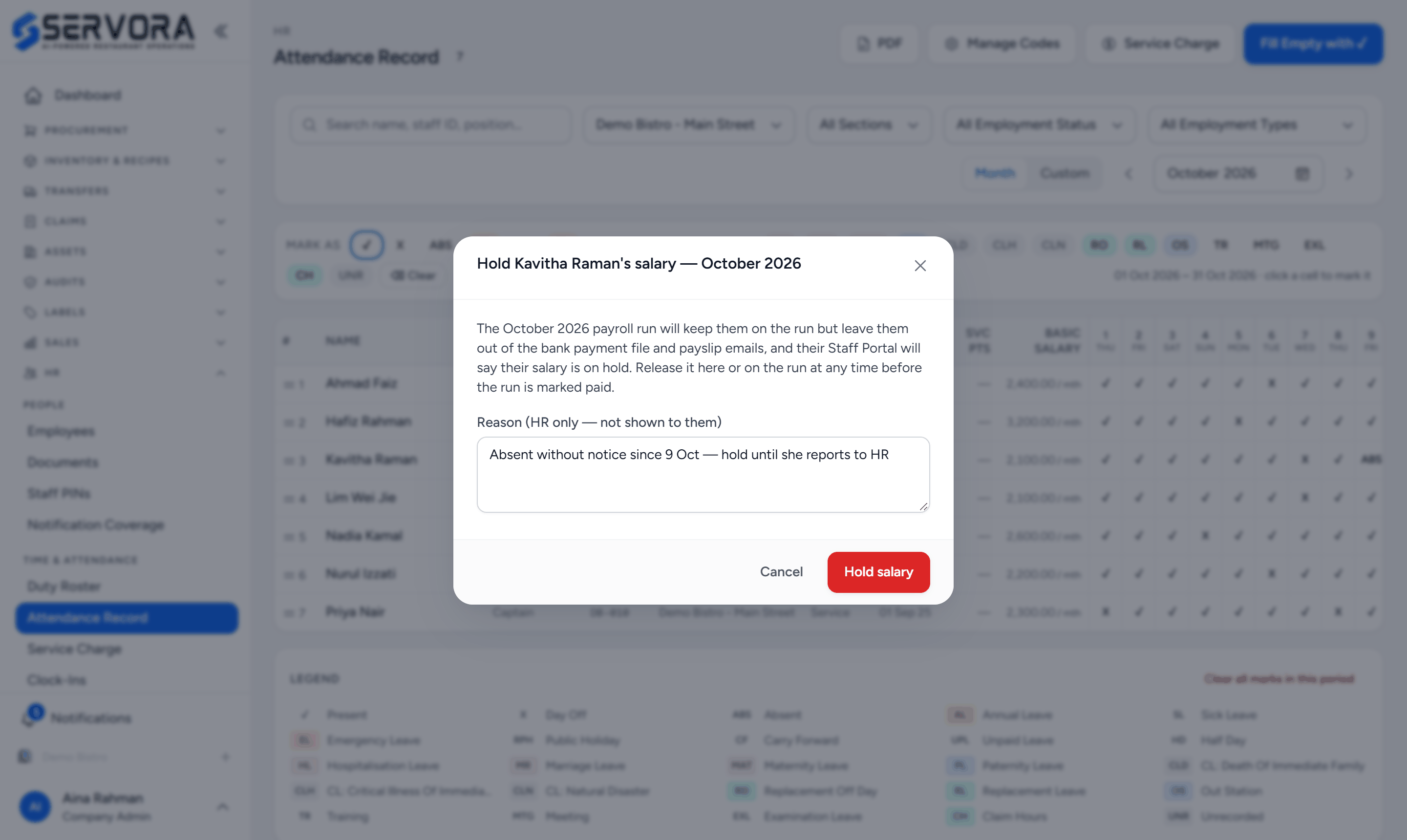
- Whose, and which month — the month you are paying.
- Reason — for HR only — the employee never sees it.
- Hold salary — they stay on the run, but out of the payment file and payslip emails.
Which month it holds
A hold belongs to one pay month — the month the payroll run is for. With the grid on a calendar month, that is the month on screen. With a Custom range (a 26th–25th cutoff, say), it is the month the range ends in, which is the month that run pays. The dialog always names the month before you confirm.
Holding July does not touch August. If the person should not be paid next month either, hold that month too when you get to it.
What the payroll run does
- They stay on the run. Basic, allowances, overtime, deductions, EPF, SOCSO, EIS and PCB are all worked out as usual, so the run still records what they earned. Their line is marked SALARY HELD with the reason.
- They are not in the bank payment file. The file's notice names them under SALARY HELD, not in this file, with the amount, so the file and the run still add up.
- No payslip is emailed to them — the email screen lists them as not sent because their salary is held.
- The run's Net pay shows how much is held and what is left to pay.
- In the Staff Portal, their payslip for that month is replaced by Salary on hold — please speak to HR. They never see the reason.
It does not matter whether the hold comes before or after the run is generated, or after it is approved — the run follows it either way until it is marked paid.
Release it
Click Release under their name on the Attendance Record, or Release hold on their line in the payroll run. They go straight back into that run's bank file and payslip emails. The hold is kept as a record — who held it, why, and who released it — and every change is in the audit log.
Things to know
- Release before the run is marked paid. Once a run is paid it is history: nothing on it changes, a hold included. If somebody's pay was held on a run that has since been marked paid and they should now be paid, pay them outside the run and record it as you normally would for an off-cycle payment.
- A month that is already paid cannot be held. The money has gone; the dialog says which run paid it.
- Statutory contributions are not changed by a hold — the run still shows EPF, SOCSO, EIS and PCB on their earnings. Whether to submit them for that month while the salary is held is a decision for whoever handles your statutory payments.
- Who can: people whose role has Hold salary under HR — Payroll (Settings → Roles). It starts with everybody who could already run payroll. Keeping the attendance grid on its own does not let someone hold pay.
Still stuck?
Tell us what you were trying to do — a person on our team will reply. If this guide is missing a step or out of date, say so and it gets fixed in the manual, not just in an email.