People & payroll
Apply leave for your staff (and record MCs)
Managers apply for any leave on a staff member's behalf from the Staff Portal — sick leave with a photo of the MC, annual leave and the rest — approved as it is saved.
5 min read · Last reviewed 22 Oct 2026
Not everybody applies for their own leave. Somebody calls in sick and the person running the shift is the one who hears about it — and the one handed the clinic slip the next day. A cook asks for Friday off at the pass and never opens the app. Team → Apply leave in the Staff Portal lets that manager put the leave in on their behalf, and photograph the MC on the spot, instead of walking it over to HR.
Who can use it
Managers who approve leave. If you see Approvals on your Team page, you will see Apply leave next to it. You can apply for the same people whose leave you approve — the staff listed under you in Settings → Leave Approvers — and not for yourself.
Apply leave for somebody
- In the Staff Portal, open Team → Apply leave. (Or, on Team → Today, tap Sick? Record leave next to somebody who has not turned up — the form opens on sick leave with them already chosen.)
- Staff member — type a few letters of their name or their outlet, and pick them.
- Leave type — any of the company's leave types: Annual Leave, Medical Leave, Compassionate Leave and so on. (Not Replacement Public Holiday — see below.)
- First day and Last day. Days fills itself in as calendar days — right for an MC, which counts every day. For annual leave, take off any rest days in between. Tick Half day for half a day, where the leave type allows it.
- MC (sick leave, and any type set to ask for one) — tap to take a photo, or choose a picture or PDF already on your phone. Optional: if you do not have it yet, add it later (below).
- Note — optional, for example "Fever, clinic slip from Klinik Mediviron" or "Asked at the pass on Monday".
- Tap Apply and approve.
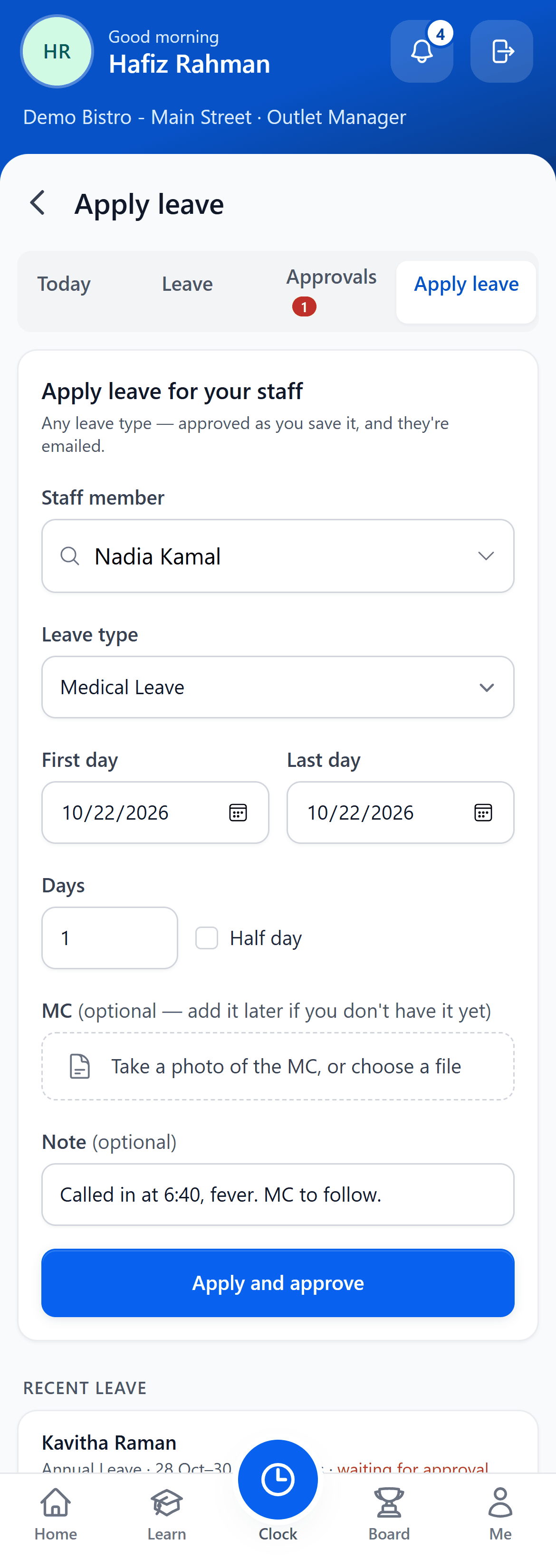
- Approvals — requests waiting for you. Apply leave is beside it.
- Staff member — only the people whose leave you approve.
- Leave type — sick leave, annual leave, any type except replacement holidays.
- First day — and the last. Today by default.
- Days — counted from the dates. Take off rest days in between.
- Half day — morning or afternoon.
- Note — what happened. The MC can be added later.
What happens when you save
- The leave is approved straight away, by you — you are the person who would have approved it. It shows in HR → Leave as applied for and approved by your account, with the note Recorded by … from the Staff Portal.
- It comes off the staff member's balance for that leave type, exactly as an approved application would, and — if they have an email on their record — they get the usual "leave approved" email.
- From there it is ordinary leave: it appears on the leave calendar, in attendance and in payroll like any other.
Adding the MC later
The slip often turns up a day after the absence. Under the form, Recent leave lists leave for your staff over the last month — including leave they applied for themselves. Sick leave without a certificate has an Add MC button: tap it, photograph the slip, and tap Save MC. Leave that already has one shows MC; tap it to look at the certificate.
When a staff member applies for sick leave themselves and attaches their MC, you will also see View MC on their request under Team → Approvals, so you can check it before approving.
When it says no
- "Choose one of your staff" — that person's leave is approved by somebody else. Ask HR if that is wrong; it is set under Settings → Leave Approvers.
- "… already has leave on one of those days" — there is already leave, approved or waiting, overlapping those dates. Check Team → Leave, or ask HR to change the existing request.
- "… has N day(s) of Annual Leave left" — their balance for that type is not enough. HR can record more from HR → Leave.
- "More than 60 days ago" — older leave is for HR to record. You can go up to 60 days back and 30 days ahead.
- A reason on the leave type itself — for example annual leave still in probation — is shown under the type, the same as the staff member would see.
For HR
- Which types — every active type under Settings → Leave Types except Replacement Public Holiday: a replacement day is taken against a particular holiday the person is owed, so the staff member picks it themself (or HR records it).
- Which types ask for an MC — any type whose code is MC, SL or HL, or whose name includes "sick", "medical" or "hospital". Any other type asks for one when Ask for a medical certificate is ticked on it.
- Who may apply follows Settings → Leave Approvers: a manager can apply for exactly the staff whose leave they approve. Their staff record needs to be tied to their back-office account (see Clock-in → Manager pages in the Staff Portal).
- Correcting one — a manager's entry is an approved leave request like any other: change or cancel it under HR → Leave. The MC is kept with the request and opens from there too.
- An MC carries a name, a clinic and sometimes a diagnosis, so it is never a public link: only HR, the manager who approves that person's leave, and the staff member themself can open it.
Still stuck?
Tell us what you were trying to do — a person on our team will reply. If this guide is missing a step or out of date, say so and it gets fixed in the manual, not just in an email.