Purchasing
Receive suppliers' LHDN e-invoices (MyInvois)
Connect Servora to LHDN MyInvois so your suppliers' validated e-invoices arrive by themselves and are matched to what was delivered.
5 min read · Last reviewed 22 Oct 2026
Since e-invoicing began, many of your suppliers send every invoice through LHDN's MyInvois system first. Connect Servora to MyInvois and those e-invoices come straight in: the exact lines, prices and tax that LHDN validated, matched to what your outlet received. Nobody re-types them.
This is for the e-invoices your suppliers send you. Servora does not issue e-invoices for your own sales — that is done in your POS or accounting system.
Before you start
- Match supplier invoices must be on. It is on the same page as the MyInvois settings (below). MyInvois only feeds the matching; without it there is nothing to match against.
- Your company's TIN (tax identification number), for example
C1234567890. - A client ID and client secret for your company's own MyInvois API access. The person who manages your company in the MyTax portal gets these: sign in to MyInvois, go to the taxpayer profile, and register an ERP system (a "taxpayer system"). LHDN shows the client secret once — copy it before you close the window.
Try it in Sandbox first if you have pre-production access. Sandbox and Production have separate client IDs; one will not work in the other.
Connect
- Go to Procurement → Procurement Settings → PO Approvers and find the card LHDN MyInvois e-invoices.
- Turn the switch on.
- Choose the Environment: Sandbox (pre-production) or Production.
- Enter Your company's TIN, the Client ID and the Client secret.
- Press Save, then Test connection. A green message means LHDN accepted the credentials.
- Press Fetch e-invoices now to bring in the last 30 days.
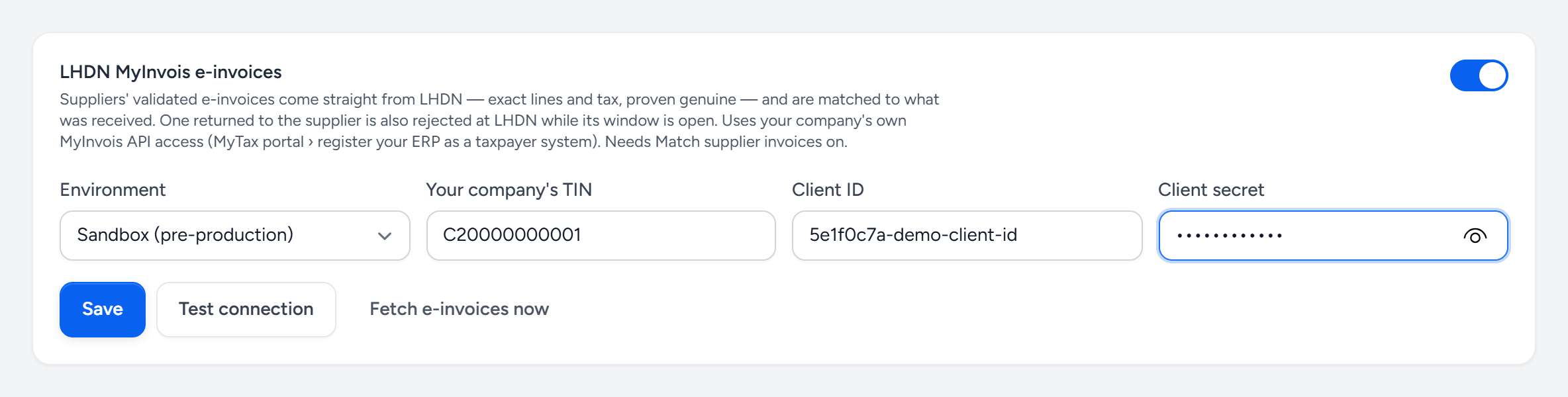
- On — turn it on once the details below are saved and tested.
- Environment — Sandbox for LHDN's test system, Production for real e-invoices.
- Your company's TIN — the tax number your suppliers bill. E-invoices to any other TIN are flagged.
- Client ID — from your taxpayer system in MyInvois.
- Client secret — shown by LHDN once. Leave it blank to keep the one already saved.
- Save — keeps the details.
- Test connection — signs in to LHDN with them and says whether it worked.
- Fetch e-invoices now — brings in the last 30 days without waiting for the next fetch.
The secret is stored encrypted and is never shown again. To change it, type a new one and save. Leaving the box empty keeps the one you saved before.
Add your suppliers' TINs
Servora knows which supplier an e-invoice is from by the supplier's tax number. Open Procurement → Suppliers, edit each supplier that e-invoices you, and fill in LHDN TIN (for e-invoices). The TIN is printed on every e-invoice they send.
Without a TIN, Servora falls back to the supplier's name, and only when it matches exactly. An e-invoice it cannot place still comes in, but without a supplier, and someone in Purchasing has to choose one.
How e-invoices arrive
- On their own. Every three hours Servora asks MyInvois for the e-invoices your suppliers have issued to your TIN and picks up the new ones.
- From the paper. Every validated e-invoice carries a QR code, or a link to
myinvois.hasil.gov.my. When an invoice is uploaded under Procurement → Invoices, photographed at receiving, or dropped by the supplier through their link, Servora reads the QR code or link and fetches the e-invoice from LHDN. LHDN's copy replaces whatever was read off the photo.
The same e-invoice never comes in twice. If someone already captured the supplier's invoice by hand, with the same number, the e-invoice is attached to it rather than added again.
What Servora checks
An e-invoice goes through the same matching as any supplier invoice: every line against what was received, at the price that was agreed. On top of that, Servora checks that:
- LHDN still shows it as Valid (not cancelled or rejected);
- it is addressed to your company's TIN;
- it was issued by the supplier's own TIN, as recorded on the supplier;
- the bank account on it is one you already have on record for that supplier.
If everything agrees, it is approved on its own and waits for payment. If anything does not, it goes to Purchasing under To check, with the reason spelled out.
On the invoice page, a strip says LHDN-validated e-invoice. Press Check at LHDN to open LHDN's own public record of it.
Returning a wrong e-invoice
When Purchasing returns an e-invoice to the supplier (write the reason and press Return on the invoice), Servora also rejects it at LHDN with the same reason, so the supplier has to issue a correct one.
LHDN allows this only within 72 hours of the e-invoice being validated. Check new e-invoices promptly. After that, the e-invoice is returned in Servora but stays valid at LHDN. The supplier has to issue a credit note to correct it.
If something goes wrong
| You see | What to do |
|---|---|
| Test connection fails to sign in | Check the environment matches the credentials: Sandbox IDs only work in Sandbox. Paste the secret again, or generate a new one in MyInvois. |
| Connected, but nothing comes in | Check Your company's TIN is exactly the one your suppliers bill. Only Valid e-invoices from the last 30 days are fetched. |
| "too many requests" | LHDN limits how often each company may ask. Wait a few minutes; the next scheduled fetch catches up. |
| An e-invoice with no supplier | Add the supplier's TIN under Procurement → Suppliers, then choose the supplier on that invoice. |
| "Issued by tax number … not this supplier's" | Either the supplier's TIN in Servora is wrong, or the e-invoice is from someone else. Check before you accept it. |
The last fetch time, and the last error if there was one, are shown under the buttons on the MyInvois card. See also Supplier invoices and AI scanning.
Still stuck?
Tell us what you were trying to do — a person on our team will reply. If this guide is missing a step or out of date, say so and it gets fixed in the manual, not just in an email.