Purchasing
Petty cash: the holder claims, the approver approves, Finance reimburses
Each outlet's petty cash holder pays from the cash box, adds the receipts in Cash box and sends them as one claim. An approver approves it, Finance reimburses the holder — or either returns it to fix.
5 min read · Last reviewed 22 Oct 2026
Every outlet with petty cash has a cash box and one or more holders — usually the outlet manager and a deputy. The holder pays for small things out of the box (santan before lunch, a mop head, a Grab for a missing delivery), keeps each receipt in Servora as they go, and claims the lot back as one claim. An approver approves it, and Finance reimburses the holder so the box is full again.
Other staff do not claim petty cash themselves: they give the receipt to the holder, who pays them from the box. What staff spend on their own work travel, meals or medical bills is a personal claim — see Personal claims.
For the holder: add receipts, send one claim
- In the Staff Portal, tap Cash box. (Only holders have it. A holder of more than one outlet picks the box at the top.) The top shows what should be in the box right now, what is not claimed yet, and the float.
- Tap Receipt, then Take photo or Choose file. Servora reads the shop, the date and the total — check them against the receipt. A Touch 'n Go or Setel PDF asks for its password once; save it under Statement passwords and later ones open by themselves.
- Pick the Section, What was it? and say What was it for? in a line, then Add. It goes on the list; tap a receipt to change it, or the bin to take it off.
- A handful of slips? Tap Several, choose up to 10 photos or PDFs, give the section, category and reason once and tap Add. Each fills in its own amount as it is read (Reading…); one it could not read says Needs amount — tap it and type the amount.
- No receipt? Tap No receipt and say why (a market stall). It is flagged to the approver.
- When the box needs topping up — weekly, or when it runs low — tap Submit claim. Everything on the list goes as one claim, numbered PCR-, to your approver.
A holder with a back-office account linked to their staff record can do the same under Claims → Petty Cash → New claim.
Your claims are listed under Claims in Cash box: Waiting for approval (you can still Withdraw it — its receipts come back on your list), With Finance, Returned to fix and Reimbursed.
When a claim comes back
The approver or Finance can return the whole claim with a note, or take one receipt off it with a note (the rest carries on, and the total drops). A returned claim shows at the top of Cash box with the note and any receipts taken off. Tap a receipt to fix it, take off what should not be there, add any that were missing, and tap Resubmit. It keeps its number and goes back to the approver, then Finance.
For approvers
Claims waiting for you are under Claims → Petty Cash → To approve, and on your phone under Team → Approvals. Open a claim to see every receipt beside its photo. Servora flags the two things worth stopping for: an amount changed from what the receipt was read as, and a possible duplicate — the same photo, or the same shop, date and amount, already claimed.
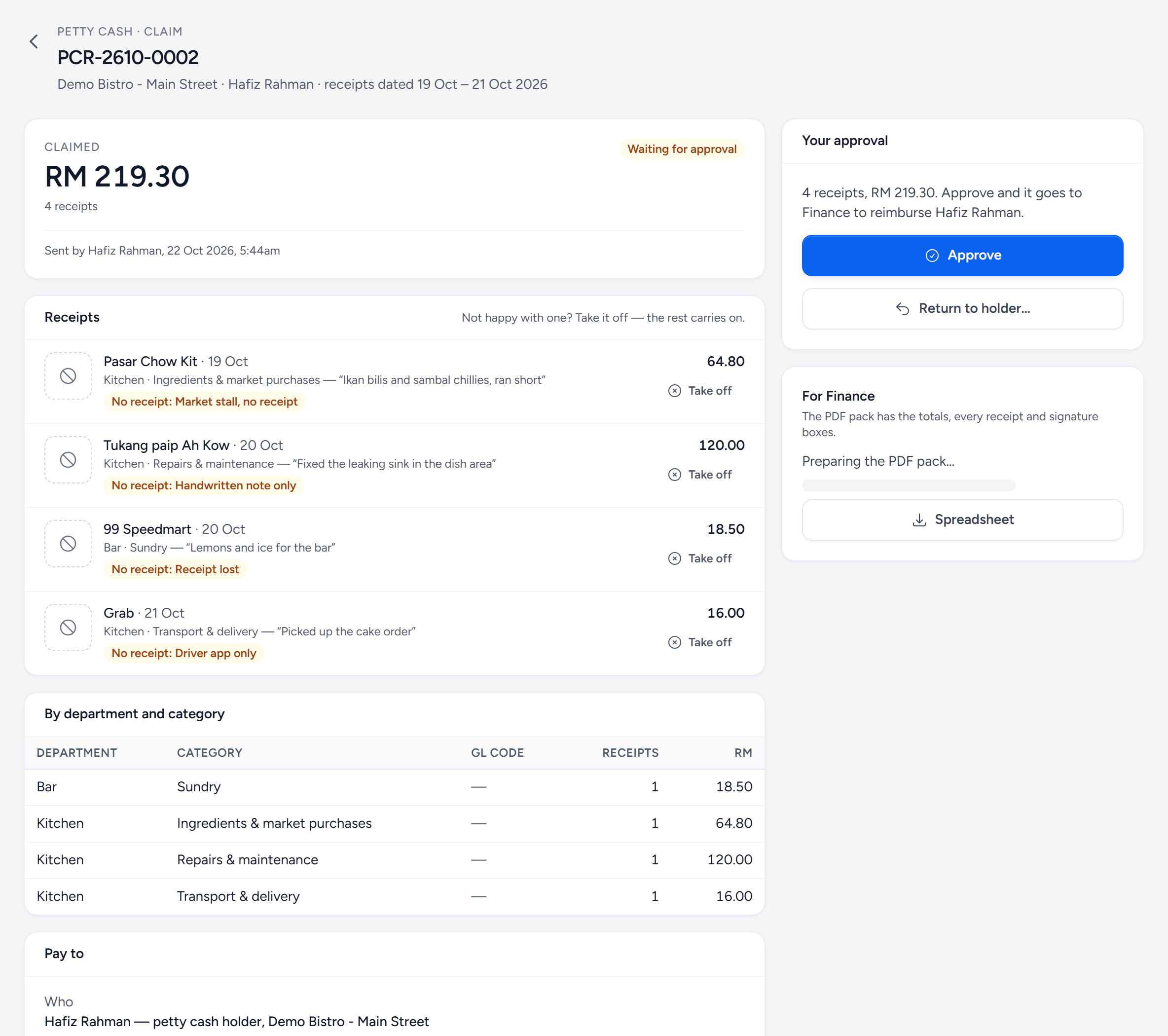
- Where it is — waiting for approval, with Finance, returned to fix, or reimbursed.
- Claimed — the total, and how many receipts.
- Worth stopping for — no receipt, an amount changed from what was read, or a possible duplicate — each says so in amber.
- Take off — remove one receipt with a note. The rest carries on.
- By department and category — with GL codes, for Finance.
- Approve — it goes to Finance to reimburse.
- Return to holder — the whole claim, with a note saying what to fix.
- Pay to — where Finance sends the money.
- Approve — it goes to Finance.
- Return to holder — with a note saying what to fix.
- Take off one receipt — with a note; the rest carries on. (Not the last one: return the claim instead.)
Approved by mistake? Until Finance pays, open the claim and use Revoke approval and return…. Nobody approves their own claim.
For Finance
Approved claims wait under Claims → Petty Cash → To reimburse. The claim page shows Pay to — the outlet's Reimburse into account if one is set, otherwise the holder's own bank account from their staff record — the totals by department and category with GL codes, and every receipt. Download the PDF pack (totals, receipts nine to a page, signature boxes) and the Spreadsheet. Once the money is sent, enter the amount and payment reference and tap Mark reimbursed. Finance can also return the claim, or take a receipt off it, with a note.
The cash box
The box runs on a float — say RM 2,000. Cash in the box plus the receipts paid out and not yet reimbursed always comes to the float. Claims → Petty Cash shows each outlet's box: what should be in it now, and what is in claims on their way back. If the box holds less than it should, count it before anything else.
Food cost
Approving a claim records each receipt in a category marked Counts as food cost as a purchase for that outlet and section, on the receipt's date, so it appears in the cost reports. If the claim is returned, those purchases go until it is approved again.
Setting it up
Under Claims → Claims Settings → Petty Cash:
- Outlets & float — switch petty cash on for each outlet with a box, set its float, and optionally the account Finance reimburses into.
- Holders — who holds each outlet's box. Pick from the outlet's staff; managers (staff linked to a back-office account) are listed first.
- Categories — what money is spent on, with an optional GL code, and whether it counts as food cost.
- Approvers — until you add anyone, everybody whose role can approve petty cash approves at their outlets with no limit. Once you add people, only their outlets and limits apply — the limit is checked against the claim's total.
On each role (Settings → Roles & Access → Roles, under Petty Cash): Approve for approvers, Finance: replenish for Finance, View to see the boxes and claims.
Still stuck?
Tell us what you were trying to do — a person on our team will reply. If this guide is missing a step or out of date, say so and it gets fixed in the manual, not just in an email.