Purchasing
Process requests: buy, or send from the store
Purchasing decides how each approved line is filled — bought, sent from the central kitchen store, or made by the kitchen — and raises it all in one go.
7 min read · Last reviewed 23 Oct 2026
With central purchasing, an approved request is not turned into one order. Purchasing goes through it line by line and decides where each item comes from: bought from a supplier, sent from the central kitchen's store, or made by the central kitchen. That happens on one screen, for every outlet's requests at once.
Open Procurement → Orders & Requests, stay on the Requests tab and press Process Requests. The button is there for Purchasing when your company orders through a Central Purchasing Unit, and it replaces the old Consolidate button.
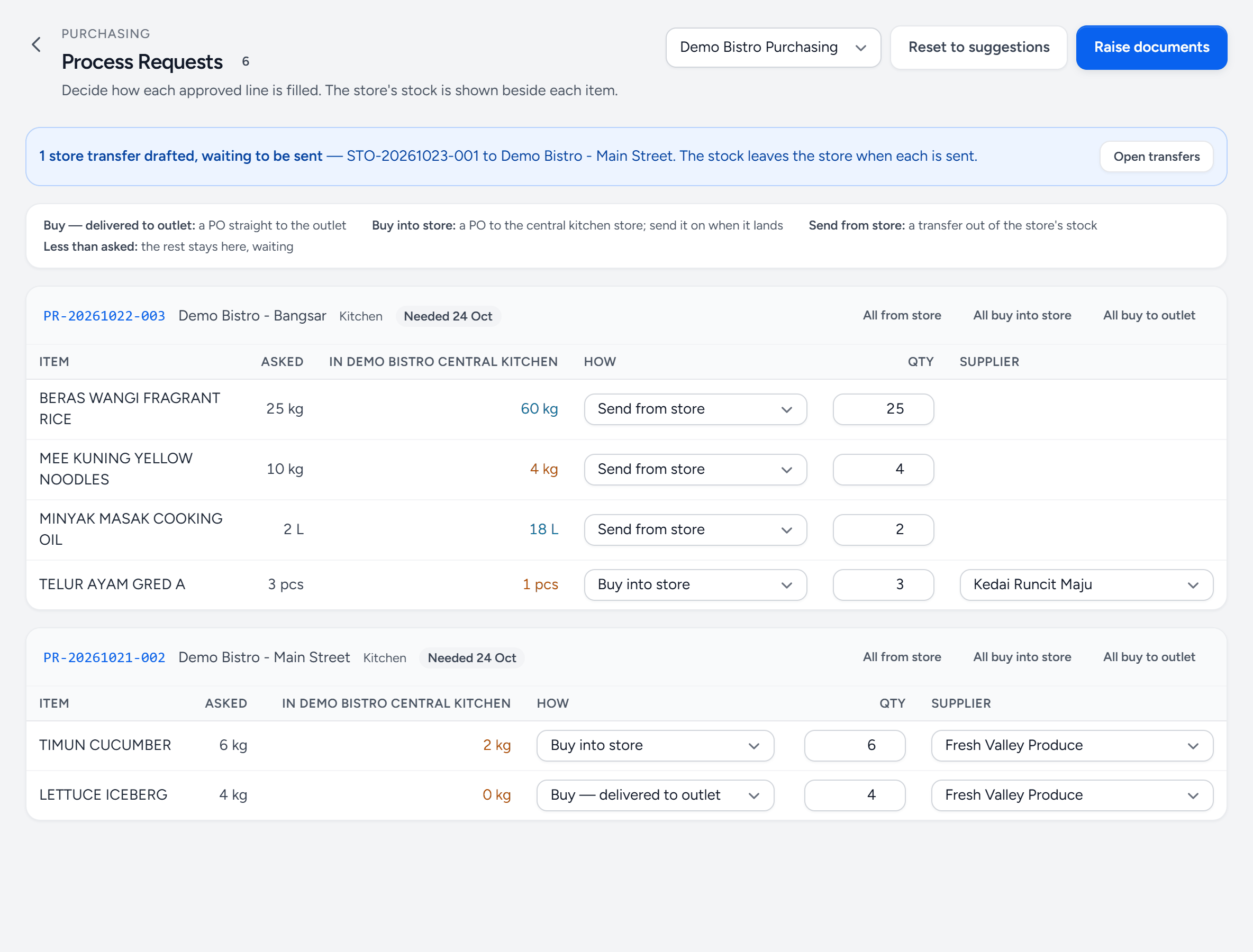
- Purchasing unit — the Central Purchasing Unit placing these orders. Whether it takes deliveries itself decides what buying suggests: into the store, or straight to the outlet.
- Waiting to be sent — store transfers already drafted, here or when goods bought for an outlet reached the store. Open transfers to send them.
- A request — the outlet, the department and when it is needed. The soonest needed come first.
- All from store — set every line of the request at once: all from the store, all bought into the store, or all bought to the outlet.
- In the store — what the central kitchen's store holds right now, in the item's base unit.
- Green — the store has enough, so Servora suggests sending it from the store.
- Amber — the store is short: it holds 4 kg of the 10 kg asked for.
- Qty — send what the store has. Less than asked fills part of the line, and the other 6 kg stay here, waiting.
- Supplier — needed for every line you buy. It starts at the supplier the request named, if any.
- Buy — delivered to outlet — the supplier delivers straight to Main Street instead of the store.
- Raise documents — the draft orders, store transfers and production orders for every line with a route, in one go.
Five ways to fill a line
| How | What Servora raises | Where the stock goes |
|---|---|---|
| Buy — delivered to outlet | A draft purchase order, supplier → the outlet that asked | In at the outlet when it receives the delivery |
| Buy into store | A draft purchase order, supplier → the central kitchen's store | In at the store, then on to the outlet by a store transfer (below) |
| Send from store | A draft store transfer, store → outlet | Out of the store when it is sent, in at the outlet when it is received |
| Central kitchen makes it | A production order at the kitchen | Sent to the outlet when the batch is made |
| Not supplied | Nothing | Nothing — the outlet sees the line marked Not supplied |
Leave for now skips a line: it stays on the screen for another day.
What Servora suggests
- An item the central kitchen makes — it has a prep recipe — is suggested for the kitchen.
- When the store holds enough, Send from store.
- Otherwise buy it: into the store when your purchasing unit takes deliveries itself, straight to the outlet when suppliers deliver to the outlets.
- A hand-typed item that is not in your catalogue can only be marked not supplied — add it as an ingredient first if you mean to buy it. Assets can be bought but not sent from the store.
- The store's own request — the kitchen ordering for itself — can only be bought: it is replenishing the store.
Change anything you like. Reset to suggestions puts every line back.
The store's stock
The store is your central kitchen's own stock: the stock of the kitchen's Base Outlet, set under Settings → Central Kitchen. The column shows what it holds right now — its last count, plus deliveries and transfers in, less transfers out and wastage. A dash means the outlet has no central kitchen with a store, so only buying is offered.
Less than asked
Lower the quantity to fill part of a line — four kilos from the store when the outlet asked for ten. The line is split: what you chose goes on its document, and the rest stays on this screen as a line of its own, waiting for you to decide again. Buy it, perhaps.
Raise documents
One press raises everything chosen: one draft purchase order per supplier and delivery point (the same item for several outlets becomes one line), one draft store transfer per outlet, and the production orders. If any line cannot go the way you chose — no supplier picked, more than was asked for, no store — nothing is raised and every problem is named, so you can fix them and press again.
On this screen you can only lower a quantity — the rest keeps waiting — not raise it or swap the item. That is what the draft orders are for: open one and change quantities up or down, units and prices, add items or take them off, then submit and send it as usual (Raise and send a purchase order). The request lines stay linked through the edit and turn Received with the goods. The outlet's request keeps showing what it asked for, even when the order buys more.
An item taken off a draft, or off an approved order by amending it, goes back to Waiting for Purchasing on this screen and its request reopens. Cancelling, rejecting or deleting a whole order hands all its lines back the same way.
A request reads Converted once none of its lines is waiting. Its page shows each line's own progress — Ordered from supplier, Bought into store, Coming from store, From store — on its way, Central kitchen making it, Received or Not supplied — so the outlet can see where each item is.
A store transfer moves stock
Store transfers (STO) are listed under Transfers → Transfer Orders, the Transfers tab of Orders & Requests. While one is a draft, nothing has moved.
- Send — the stock leaves the store, valued at each item's current cost, and is in transit. The same movement shows under Transfers → Stock Transfers, from the kitchen's store to the outlet.
- Receive — when it arrives, the outlet receives it and the stock is the outlet's. Staff do it in the Staff Portal (below); in the back office, receiving it under Stock Transfers receives the transfer order with it.
- Cancel — before it is received, cancelling puts the stock back in the store and its request lines back on Process Requests.
Receiving it at the outlet
In the Staff Portal, Deliveries lists what the central kitchen has sent, under From the central kitchen, above the supplier deliveries. Anyone posted to the outlet can receive it. They see quantities, never prices.
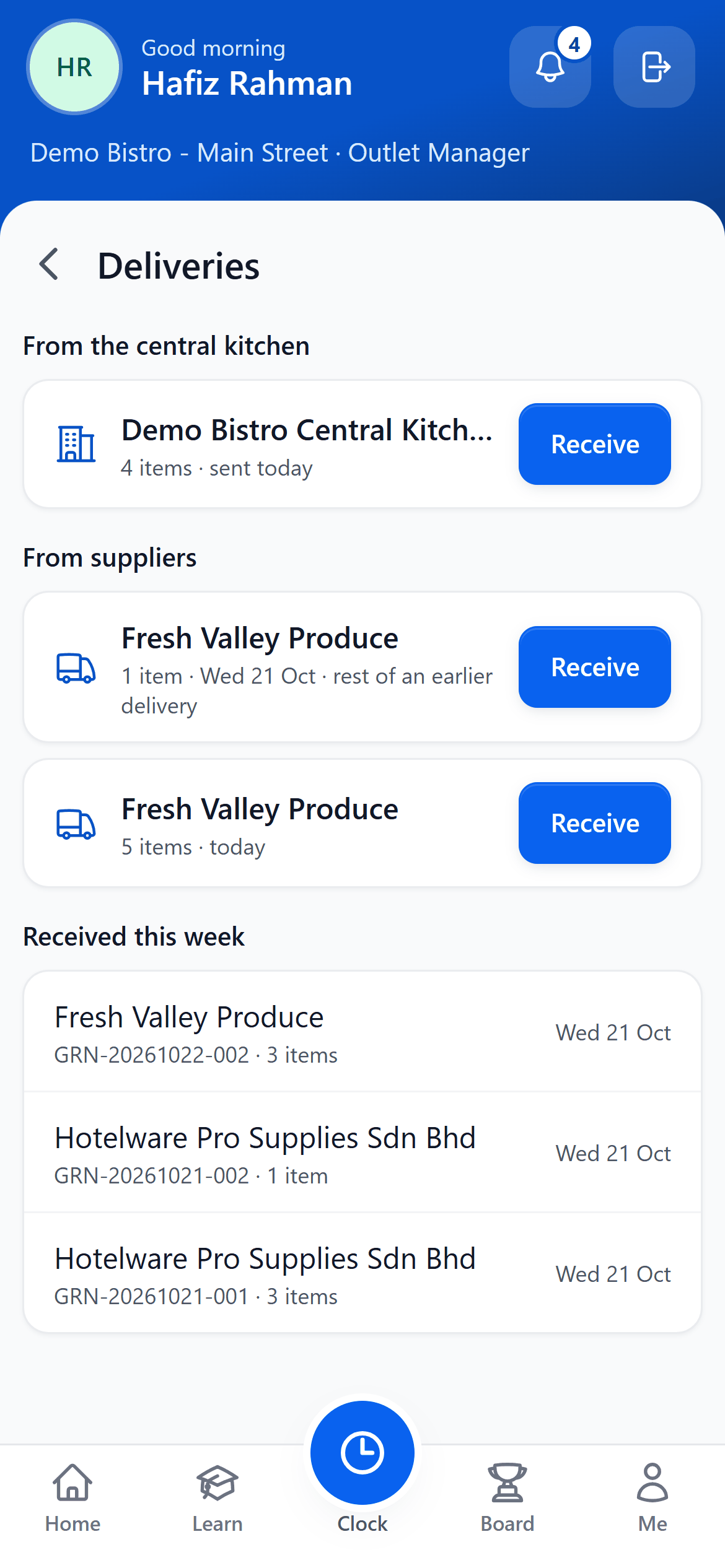
- From the central kitchen — store transfers that have been sent and are on their way. A draft is not here until Purchasing sends it.
- What is coming — how many items, and when it was sent.
- Receive — count it in, item by item.
- From suppliers — supplier deliveries, received the same way (Receive a delivery).
Each item shows what was sent, with a stepper set to the same. All as sent is the one tap when nothing is wrong; otherwise step down what did not come, then Confirm received.
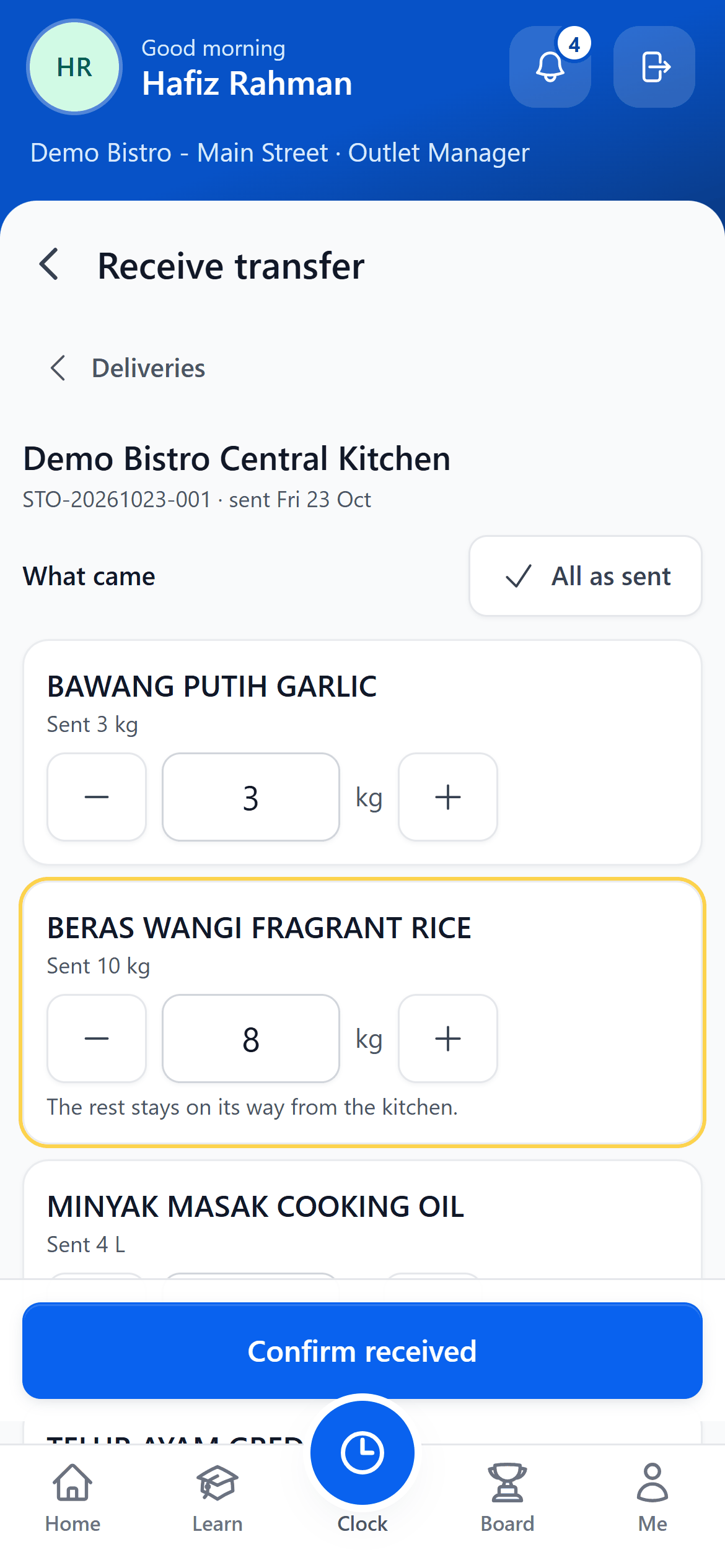
- Where it is from — the central kitchen, the transfer number and the day it was sent.
- All as sent — everything arrived. One tap sets every item back to what was sent.
- Step down — less came than was sent. You cannot receive more than was sent.
- The rest — the 2 kg that did not come stay on their way from the kitchen.
- Confirm received — the stock counted is now the outlet's.
When less arrives than was sent, the outlet gets what was counted, and the rest stays on its way as a follow-on transfer, Rest of STO-…, which shows in the same list until it comes. If it never does, Purchasing cancels it and the stock goes back to the store. A branch owned by a separate company is then no longer billed for it (Branches owned by a separate company).
Sending to a branch owned by a separate company also bills it. See Branches owned by a separate company.
Buying into the store for an outlet
A line bought into the store is bought for an outlet, and Servora remembers which. When the store receives the delivery, a store transfer to each outlet is drafted for what arrived, the soonest needed first. A short delivery fills what it can; the rest waits for the supplier's backorder.
The transfers are drafted, not sent. The banner at the top of Process Requests lists them until Purchasing sends each one — that is when the stock leaves the store.
A line bought straight to the outlet reads Received once the outlet receives that delivery.
Still stuck?
Tell us what you were trying to do — a person on our team will reply. If this guide is missing a step or out of date, say so and it gets fixed in the manual, not just in an email.